How to try the operator station in the demo
Wiki: Floor concepts, Downtime
When to use this
You’re exploring Spall’s demo environment and want to see the operator side of the floor, beyond watching a wallboard: tapping a count, coding a downtime reason, and raising a help call, the way someone standing at a machine would.
Steps
- The demo tenant already includes a second board called Operator Station, alongside its live floor wallboard. It’s pre-built with the operator tile set: a run-state/count tile, a Record tile, a Downtime tile, and a Help tile, no configuration needed.
- On your own phone, tablet, or laptop, signed into the demo, open
/kiosk. Since you’re already signed in on this device, you’ll see “Set up this device as a station” instead of the plain pairing screen.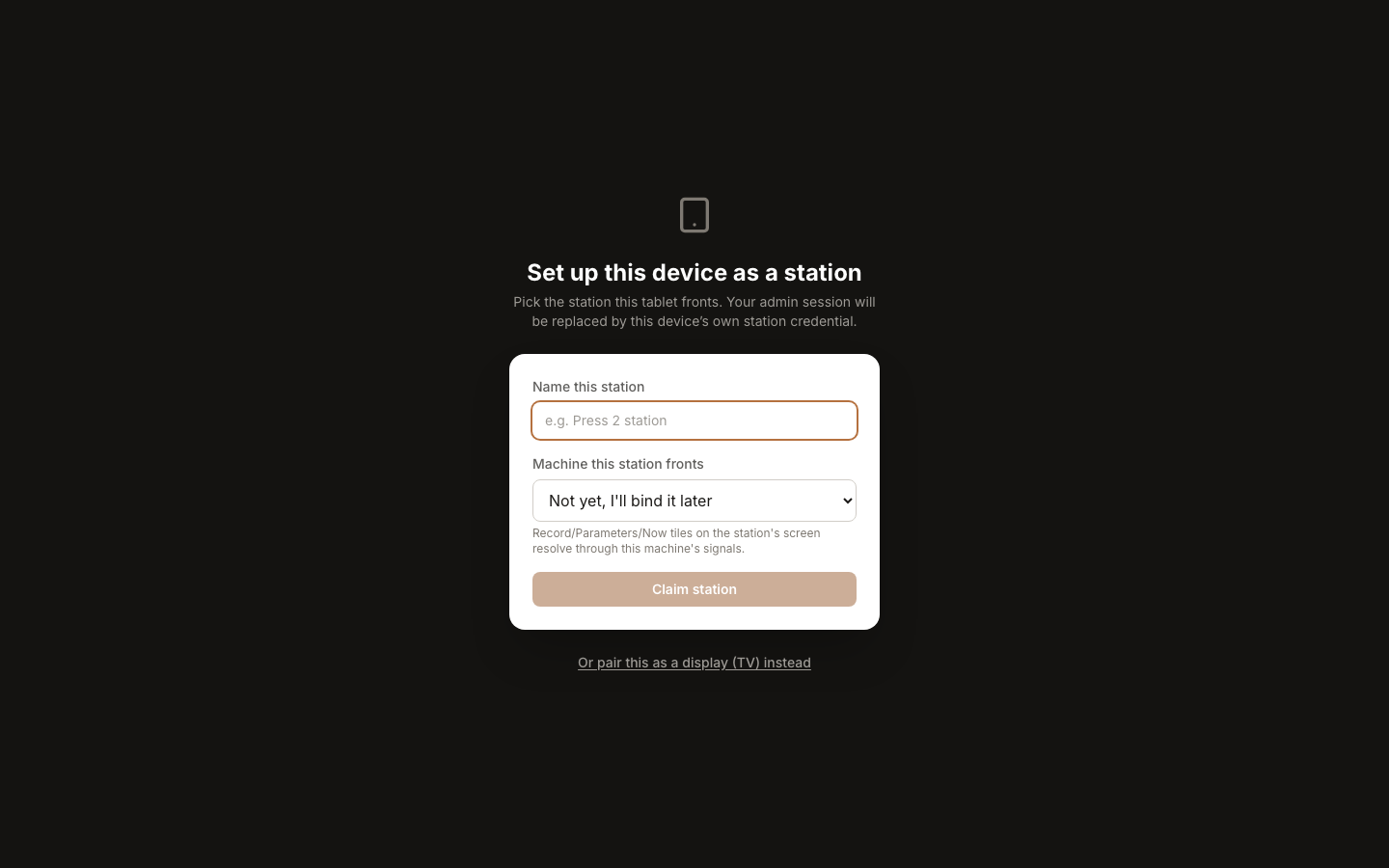
- Name the station and pick any demo machine from the plant picker, for example Press #1. Tap Claim station, your session on this device becomes the station’s own device credential.
- If the Operator Station board isn’t already assigned, go to Kiosk → Devices, find your new station, and assign it the Operator Station board.
- You’re now looking at a live, tappable station:
- Now shows the machine’s run state and count versus target.
- Record is a big-button manual entry, type a count and tap Record, it’s PIN-gated the first time, then stays signed in for a few minutes so you can keep tapping without re-entering it.
- Downtime lists any open downtime span with a Tag reason button, a real reason-code list scoped to the demo tenant.
- Help raises a request (Maintenance, Material, Quality, Other) and shows the status of your own open ones.
- Switch back to the admin app: what you just tapped shows up as a real row, a production count, a coded downtime event, an open work item, on the ordinary admin screens (Production, Downtime, Work items), within moments.
Notes
- This is the same claim flow and the same tile set a real deployment uses, see How to run a claimed station for the full reference. Nothing about the demo board is a simplified stand-in.
- Claiming a device replaces your admin session on that device with the station’s own credential. To go back to browsing the demo as an admin, sign back in on a different tab or device, or un-claim the station from Kiosk → Devices.
- If you’re on a guided walkthrough with a Spall contact, ask them to hand you a tablet already claimed as a station, that skips steps 2 to 4 and drops you straight into step 5.