How to find $-ranked opportunities and ML insights
Wiki: Improve concepts, ML insights and value opportunities
When to use this
You want to know, without manually digging, where capacity or money is leaking right now, and what the automated anomaly/prediction layer has already flagged.
Steps
- Click Improvement, then Opportunities (
/insights).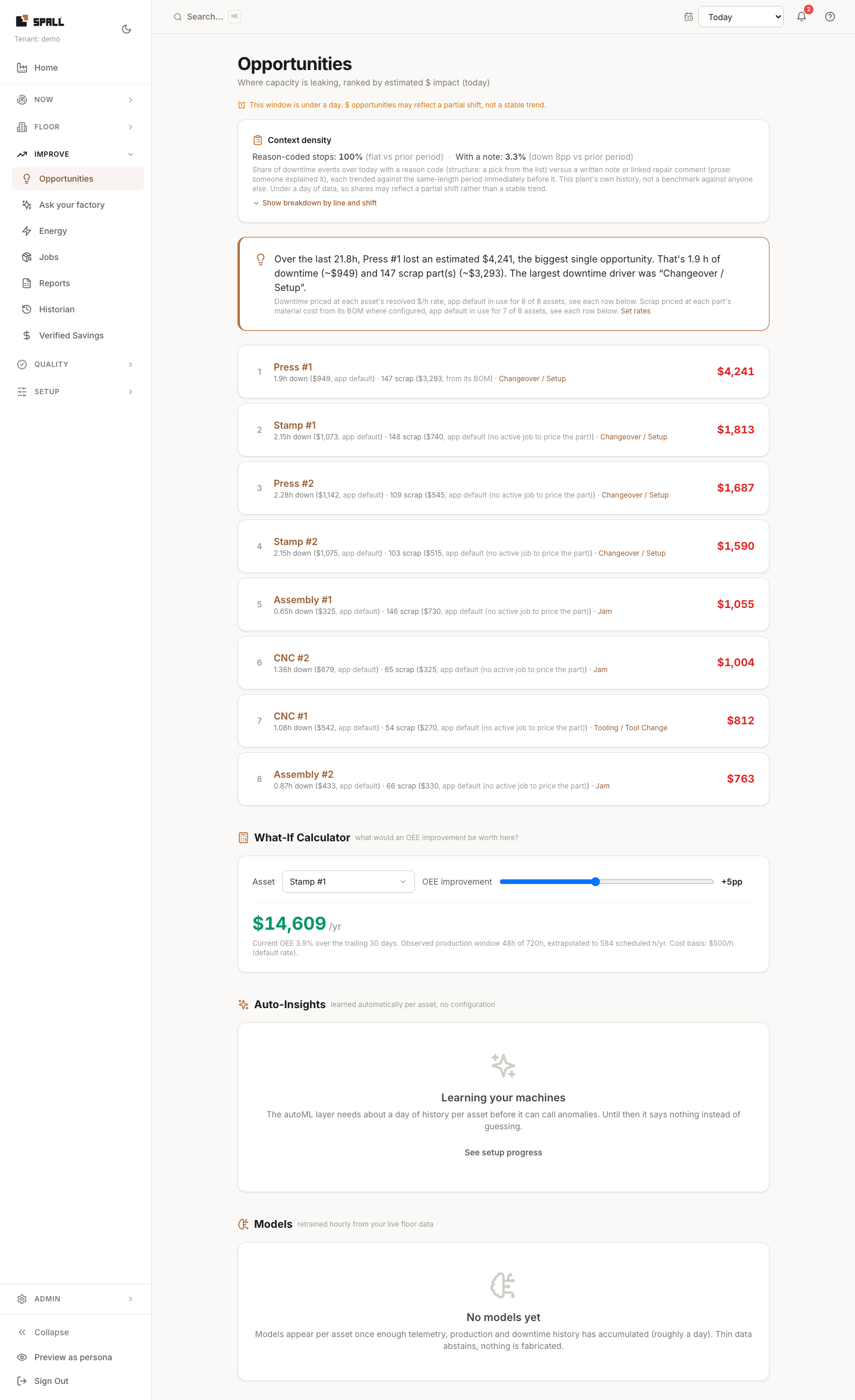
- If there’s downtime data in the window, check the Context density line near the top, it shows what share of stops carry a reason code and what share carry a written note, each compared against the prior period. Click “Show breakdown by line and shift” to see where annotation is thin.
- Review the Value Discovery board, opportunities ranked by dollar impact, highest first.
- Review open ML insights (Auto-Insights) below it, each shows expected-vs-observed evidence and a confidence value, not just a bare verdict. When the same pattern shows up on more than one machine, for example the same drift or downtime risk finding, it collapses into one card listing every machine it applies to, sorted by dollar impact, instead of one card per machine. Click a machine’s Details to see its own evidence. The list caps at 5 patterns with a Show more link for the rest. A machine added today may show insights labeled as borrowed from a similar machine until it has its own day of history, and that label goes away on its own once it does.
- Some insights offer a rule to create from the pattern directly: “Create rule from this pattern” for a measurement threshold, or the pattern’s own wording (for example “alarm 1043 twice within 60 minutes”) for an alarm that reliably repeats before a stop. Either one opens the Add Rule form with the condition filled in, see How to create KPI and alarm rules.
- Check the Models panel to see which signals each model actually uses, this is there for automation transparency, so an insight isn’t a black box.
- For an insight you’ve addressed or don’t want to see again, dismiss it
(
POST /api/v1/ml/insights/{id}/dismiss). - For an insight you want elaborated in plain language, click Explain
(
POST /api/v1/ai/explain). In a pattern shared by several machines, it opens that machine’s details immediately and keeps the explanation there while it loads or if AI is unavailable.
Related
- How to create KPI and alarm rules
- How to ask your factory a question
- How to run the maintenance repair loop (the RUL panel there uses the same automated-analysis pipeline)
- How to follow a loss from stop to verified result
- How to see what Spall has learned about the plant (the same models panel, rolled up across every machine)
The ranking period appears beside the dollar-ranked list. Open Auto-Insights retain their own observation windows, shown on each machine row even before Details opens. Changing the ranking period does not filter those open findings.
Dismiss removes a finding from the open feed while keeping its evidence. A new occurrence can appear later. An action note records what was done and when without linking an existing job or work item. The Job picker offers open jobs when focused. Typing searches the full job record list.