How to build a kiosk wallboard
Wiki: Setup, edge and devices, Kiosk
When to use this
You want a shop-floor TV to show live OEE/counts/downtime for specific lines, without anyone signing in on the TV itself.
Steps, configure the board (admin, signed in)
- Click Plant, then Boards to open the board page (
/kiosk-screens): a Boards tab (default) and a Devices tab.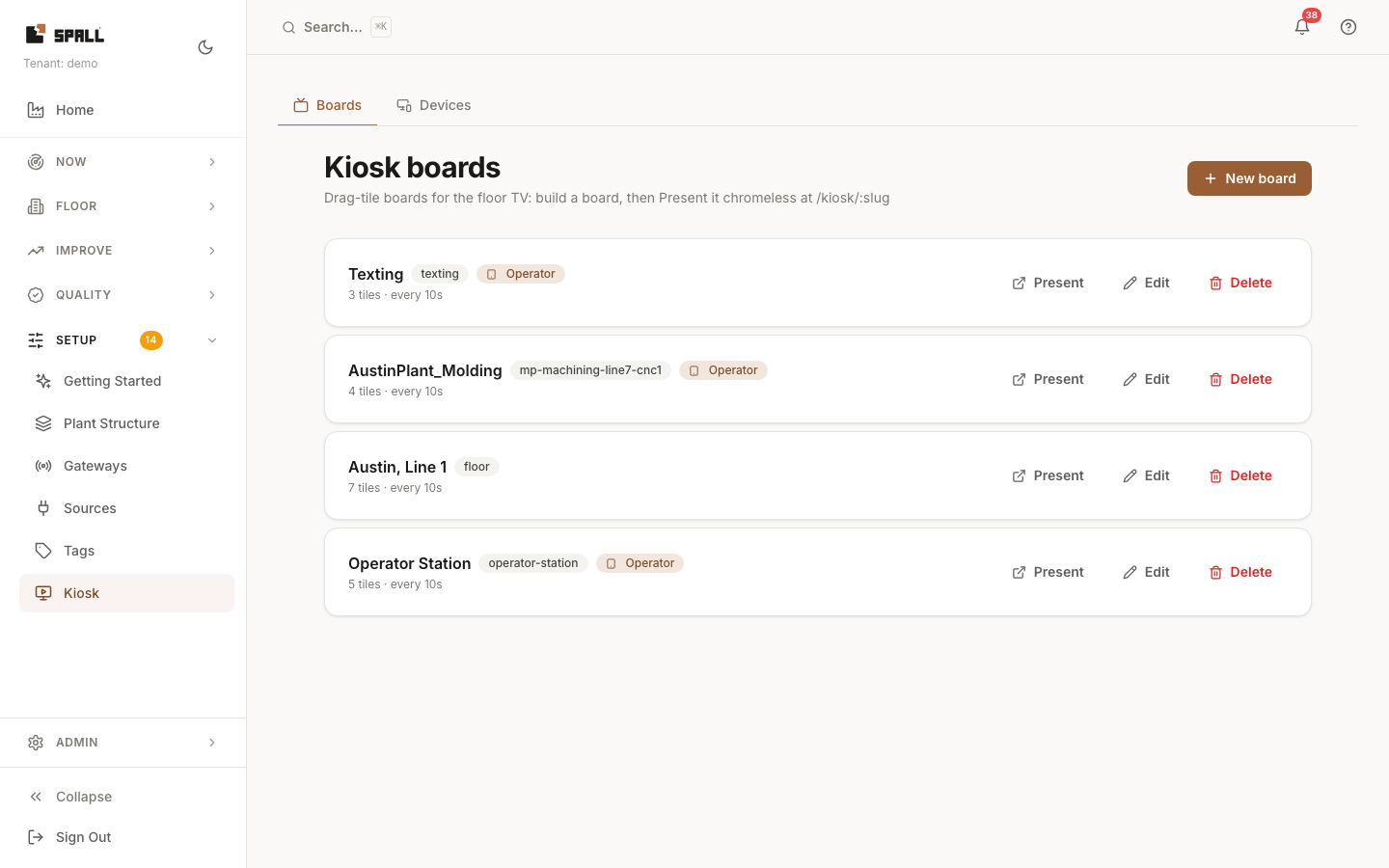
- On Boards: existing boards list their
slug(e.g."floor"), tile count, and refresh interval. New board opens the drag-tile board editor, choose the assets/nodes each tile shows, a layout, which fields (OEE, APQ, counts, downtime reason), and a refresh interval. - The editor has two modes, toggled at the top: Edit is the drag/resize canvas where you add tiles from the tray and arrange them. Preview switches to a read-only render of exactly what the TV will show, at true design size, with nothing clickable. Use Preview to check your layout before walking to the floor. A dashed line marks the board’s real edge on a fixed-ratio (16:9 or 4:3) board, drag or resize a tile toward it and it stops right there, so the board always keeps the shape it will actually show on the TV. If you open a board that was saved before this line existed and it already runs past its own edge, the editor says so plainly instead of moving your tiles on its own: everything below the dashed line just shrinks to fit once it reaches the TV.
- Click a tile in Edit mode to open its config drawer: pick what it shows (an asset, a measurement, a product) and a font size step. The tile tray includes a Downtime Cost tile: today’s or this shift’s lost minutes, priced at each machine’s rate, showing the dollar figure the floor is losing right now. Pick a line, a plant, or leave it on the whole plant, and pick today or this shift. When a machine has no configured rate it shows the app’s standard rate with a plain note instead of hiding the number. There’s no color picker, a tile’s accent line is quiet gray by default and only turns green/amber/red when its own metric enters that state, so the board never carries decorative color that doesn’t mean anything. Text tiles are always at least two rows tall (a one-row text tile doesn’t exist, so the editor won’t let you shrink one past that).
- Click Present on a board to open its live wallboard in a new tab and check your work, or Edit / Delete it. The presented board shows an Exit preview button in the bottom left corner. It fades away after a few seconds, and any tap or mouse movement brings it back. Use it to return to the app, which helps on a tablet where there is no browser back button.
- Switch to the Devices tab (
?tab=devices) to see which physical screens/tablets are paired to which board, and to unpair a device.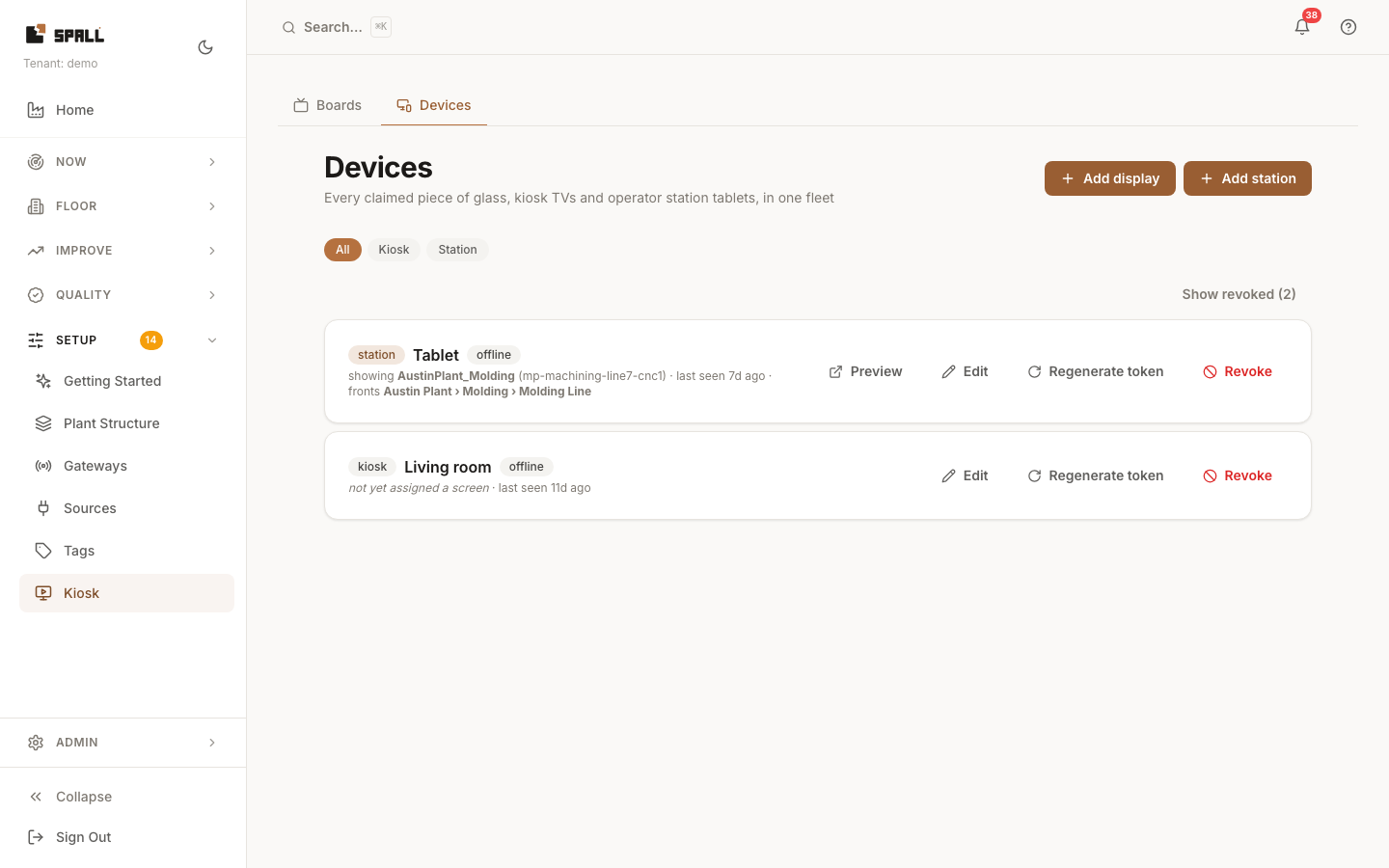
Steps, put the live wallboard on a shop-floor device
- On the floor TV/device, open the bare wallboard address (
/kiosk, no board name in the URL). A genuine floor TV with no one signed in goes straight to the pairing screen: scan the QR code or type the short code shown in the Devices tab. Once paired, the device shows its assigned board and returns to it on its own after a power cycle. A code that is entered wrong too many times locks, the app says so, and reloading the TV’s pairing screen shows a fresh code to try instead.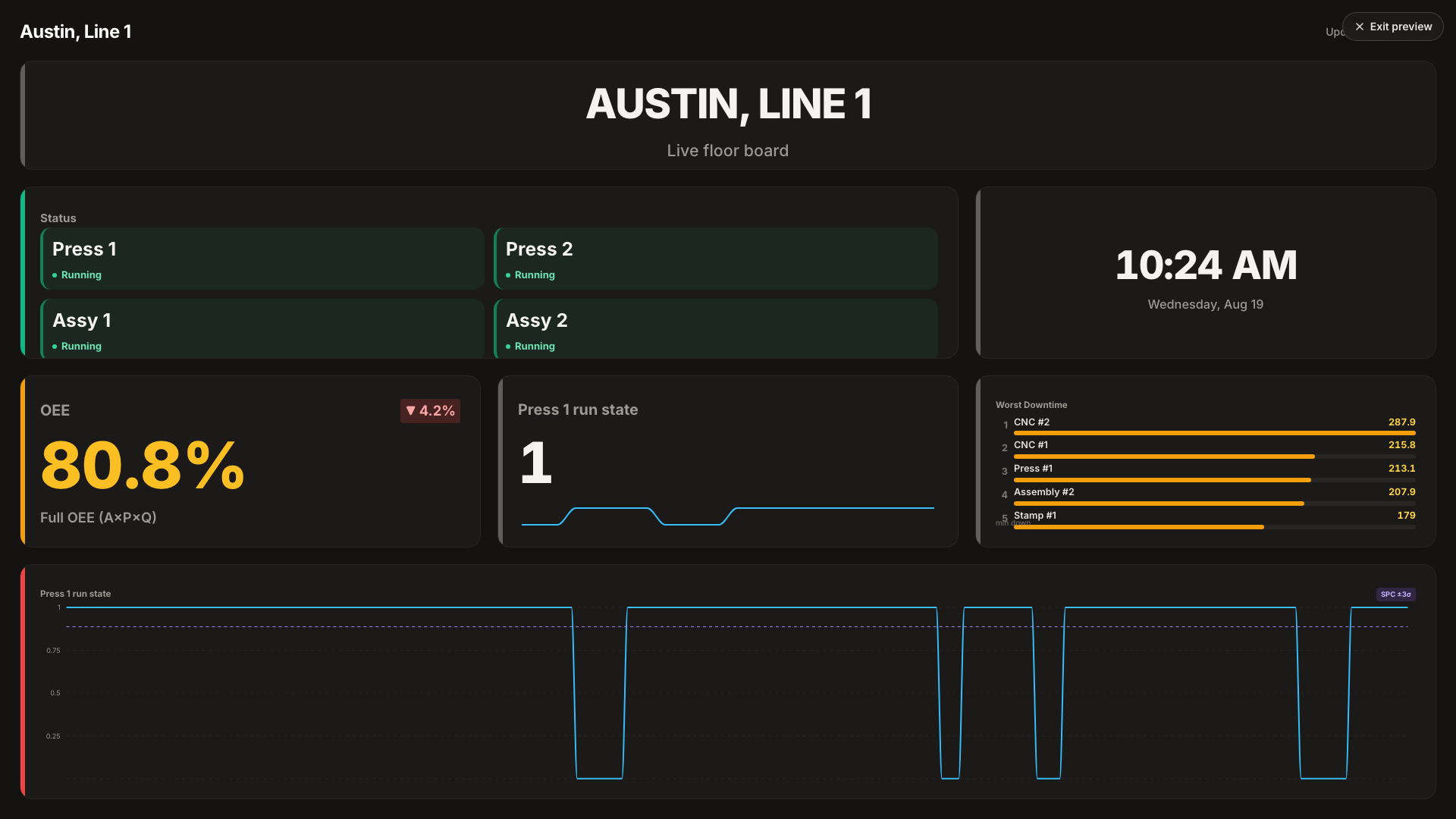 If you open that same address while already signed in (checking it from your own laptop, say), you see
the boards list instead, with Set up this device as a secondary link, click it to reach the same
pairing/claim screen a real floor device sees.
If you open that same address while already signed in (checking it from your own laptop, say), you see
the boards list instead, with Set up this device as a secondary link, click it to reach the same
pairing/claim screen a real floor device sees. - Nobody types a password at the TV: pairing gives the device its own credential behind the scenes, and the board keeps refreshing without anyone touching it. (Admins previewing from their own browser use the Present button instead, which uses their signed-in session.)
- Each mapped tile shows OEE/A/P/Q and good/scrap counts, refreshing on the configured interval, plus live flow-rate tiles for any designated assembly cell/line (the same live data Facility Map shows). On a plain wallboard TV, a Cell Map or Facility Map tile is a picture only, nothing on it responds to a touch or a click. Put that same tile on a claimed station instead and its machine boxes become live controls, see How to run a claimed station.
- A device that is not paired, or whose pairing was removed from the Devices tab, shows the pairing screen again instead of a blank page.
Notes
- A device can instead be claimed as an interactive station instead of a passive wallboard, see How to run a claimed station.
- Boards and Devices are tabs on one Kiosk page.
- A tile showing “NO DATA” with dashed values means the telemetry feed for that asset isn’t flowing. The “no data” rendering is working correctly. It isn’t a bug in the wallboard itself.