How to manage gateways: the gateway home
Wiki: Setup, edge and devices
When to use this
You need telemetry flowing from the floor into Spall, claim a gateway, connect a machine to it, watch its
health, push configuration, and (if you have the access) pin it to a signed release. Gateways (/gateways)
is where you do all of this. Fleet health, assembled configuration, and commissioning checks live on
the list or as tabs on a gateway’s own detail page.
Steps, the gateway list
- Open Gateways (
/gateways), under Setup at the bottom of the sidebar.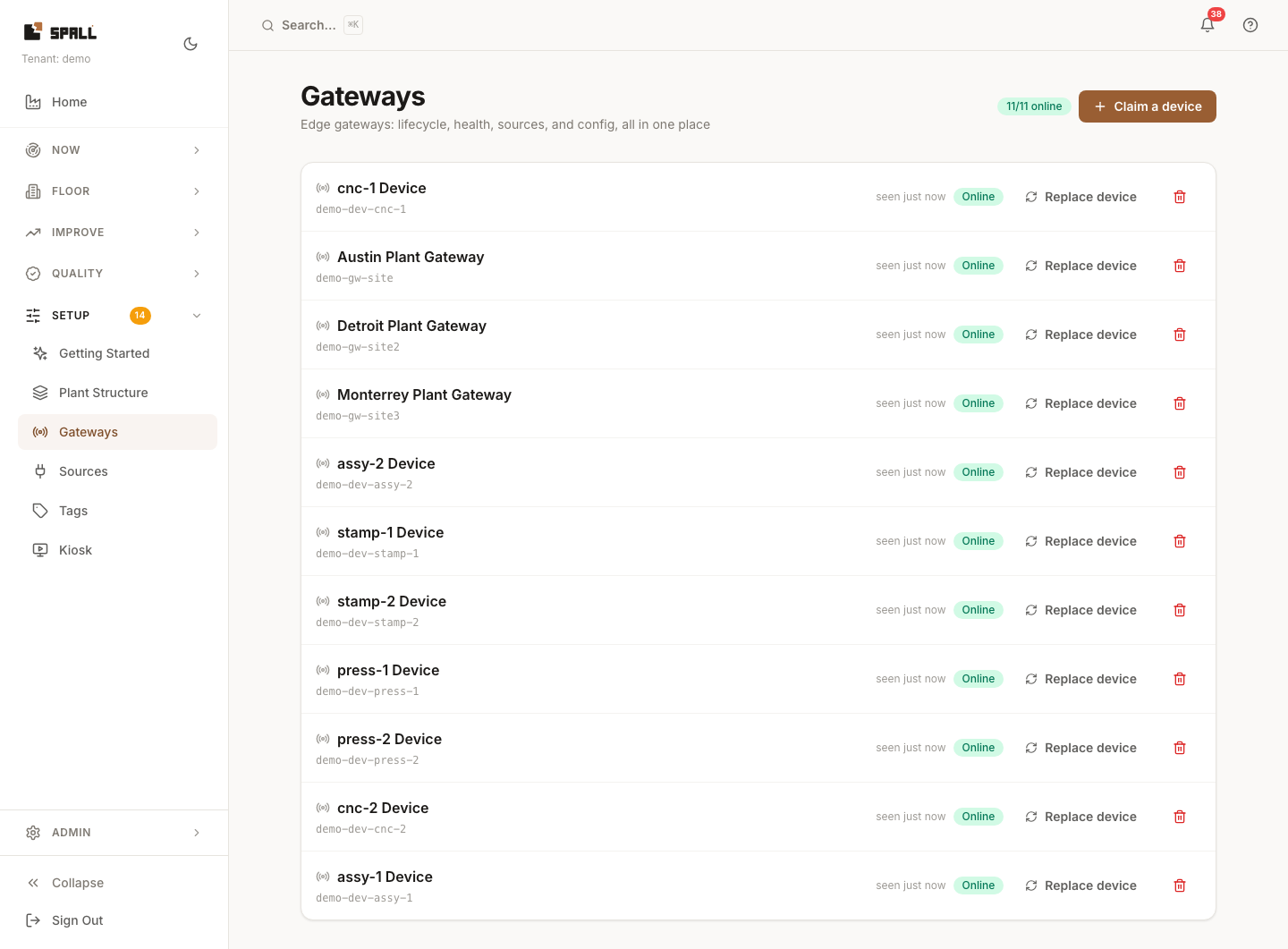
- Review every gateway for the tenant at a glance: online/offline count, last-contact, and status. A gateway that has claimed a token but never actually phoned home shows a distinct “registered, never connected” state instead of “offline”, offline means it WAS live and went quiet, a different problem to chase.
- To onboard a brand-new physical device, click Claim a device to mint a short-lived (60-minute) claim
token, then hand that token to the device (its boot-partition provisioning file, or the on-device
:8080setup console) so it enrolls itself. There is no “add a gateway” form, the only way a gateway comes to exist is a device enrolling with a claim token. This step is admin/super_admin only. - Replace device swaps a dead unit’s identity onto a new one without losing its history/config. Delete gateway is permanent and removes everything it owns in one shot, its sources and their tag configuration, broker credentials, command history, and rollout membership. If it heartbeated in roughly the last 10 minutes, delete is blocked with an “this device appears alive” confirm you have to accept explicitly.
- Click a gateway’s name to open its detail page, five tabs: Status, Sources & tags, Config, Network, Lights.
Steps, a gateway’s detail tabs
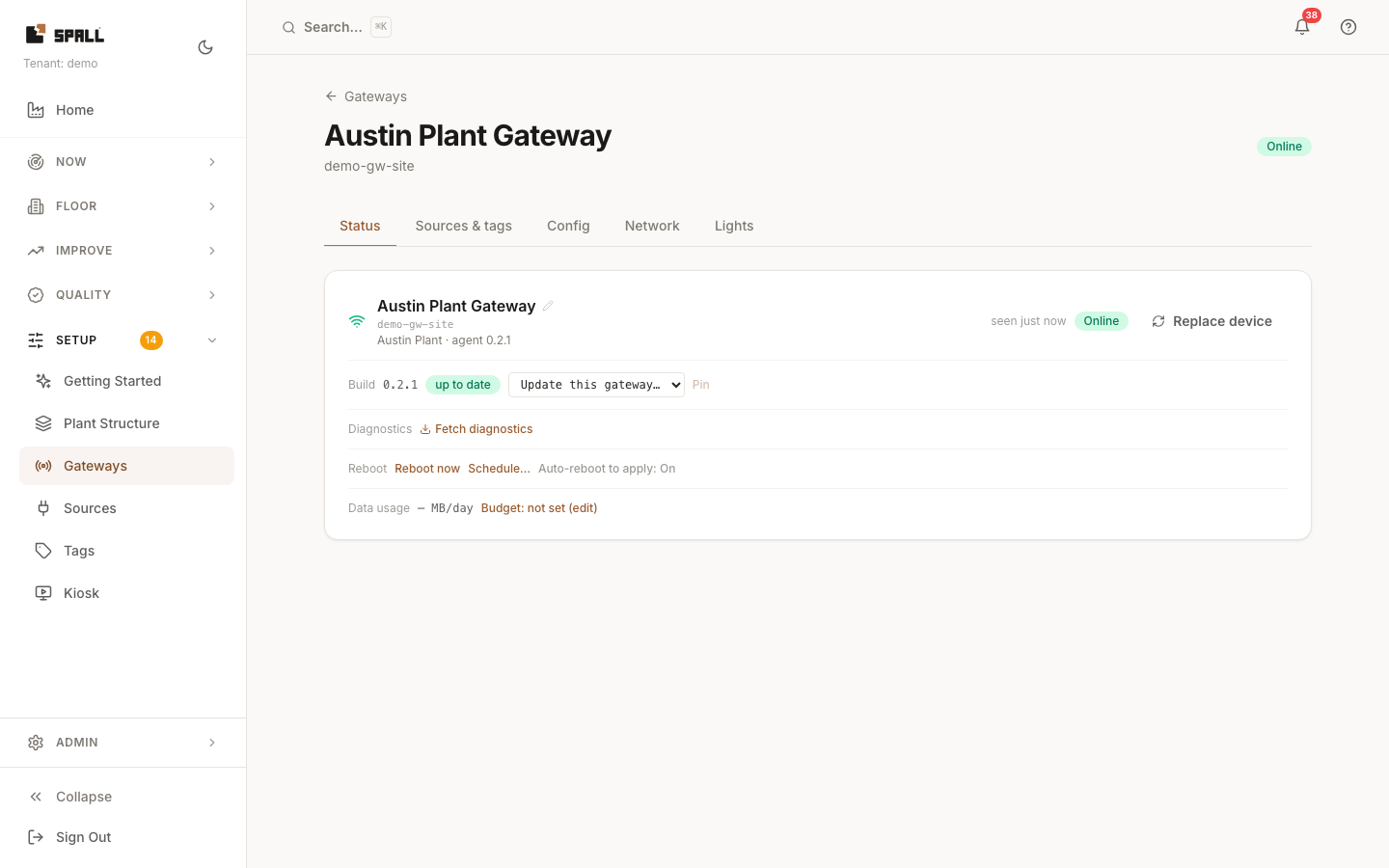
- Status: reported build/version, last-seen, and (admin+) the controls that matter day to day, Pin a target release via the “Update this gateway…” dropdown (only lists published, signed releases,
never free text, see How to verify signed edge-agent releases),
Fetch diagnostics, Reboot now / schedule a reboot, and set its data budget (MB/day). If a staged
rollout is currently targeting this gateway, an “in rollout: vX stage N” note appears next to the
dropdown and the dropdown grays out, that rollout owns the pin until it finishes or is rolled back, see
How to roll out a gateway update in stages. If the
gateway’s clock has drifted out of sync with real time, an amber “clock unsynced” chip appears here with
how long it’s been that way, a drifting clock mistimes everything the gateway records, so treat
this as worth fixing promptly (check its network connection and time-server settings on the device’s own
setup console). Nothing shows here at all when the clock is fine.
After pinning a release, a quiet “Updating to vX…” chip shows while the gateway is applying it, no
action needed. If the update can’t complete, the chip turns red and states the gateway’s own reason in
plain language, for example a staged file going missing before it could apply, so you know what actually
happened instead of a generic failure message. The gateway retries a failing update a few times on its
own. If it still can’t complete, it stops trying and the chip says it gave up, with the last real error,
so it isn’t burning cycles on an update that can’t stick. Pinning a different release starts a fresh
attempt and clears the old failure. To try the same release again, clear the pinned version first, then
pin it again, that grants the gateway a fresh set of attempts. A disk usage chip appears once a gateway is running low on
storage, amber when it’s getting full, red when it’s nearly full, worth checking before pinning an update,
since a full disk is a common reason one fails partway through.
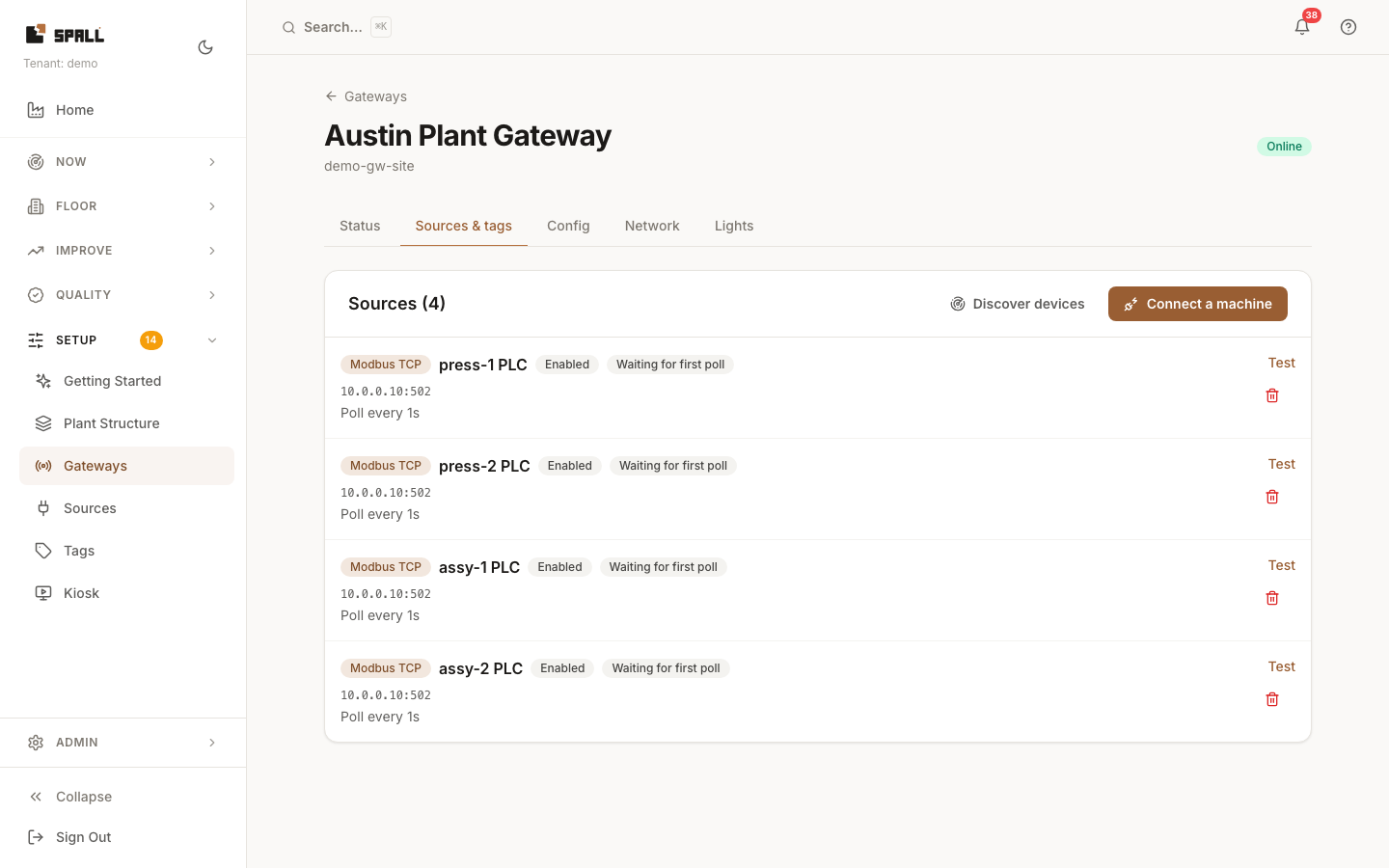
- Sources & tags: every data source wired to this gateway, and, from here, Connect a machine, the
wizard that adds a new one. Each source shows two separate badges: Enabled/Disabled (whether you’ve
turned it on) and, right next to it, its live poll health, Polling (green, with how long ago the last
successful read was), Failing (red, with the actual connection error, wrong IP, device off, wrong
network cable) or Waiting for first poll (a source you just added, before its first read has happened
yet). A source can be Enabled and Failing at the same time, that combination is exactly what tells you a
configured machine has gone unreachable.
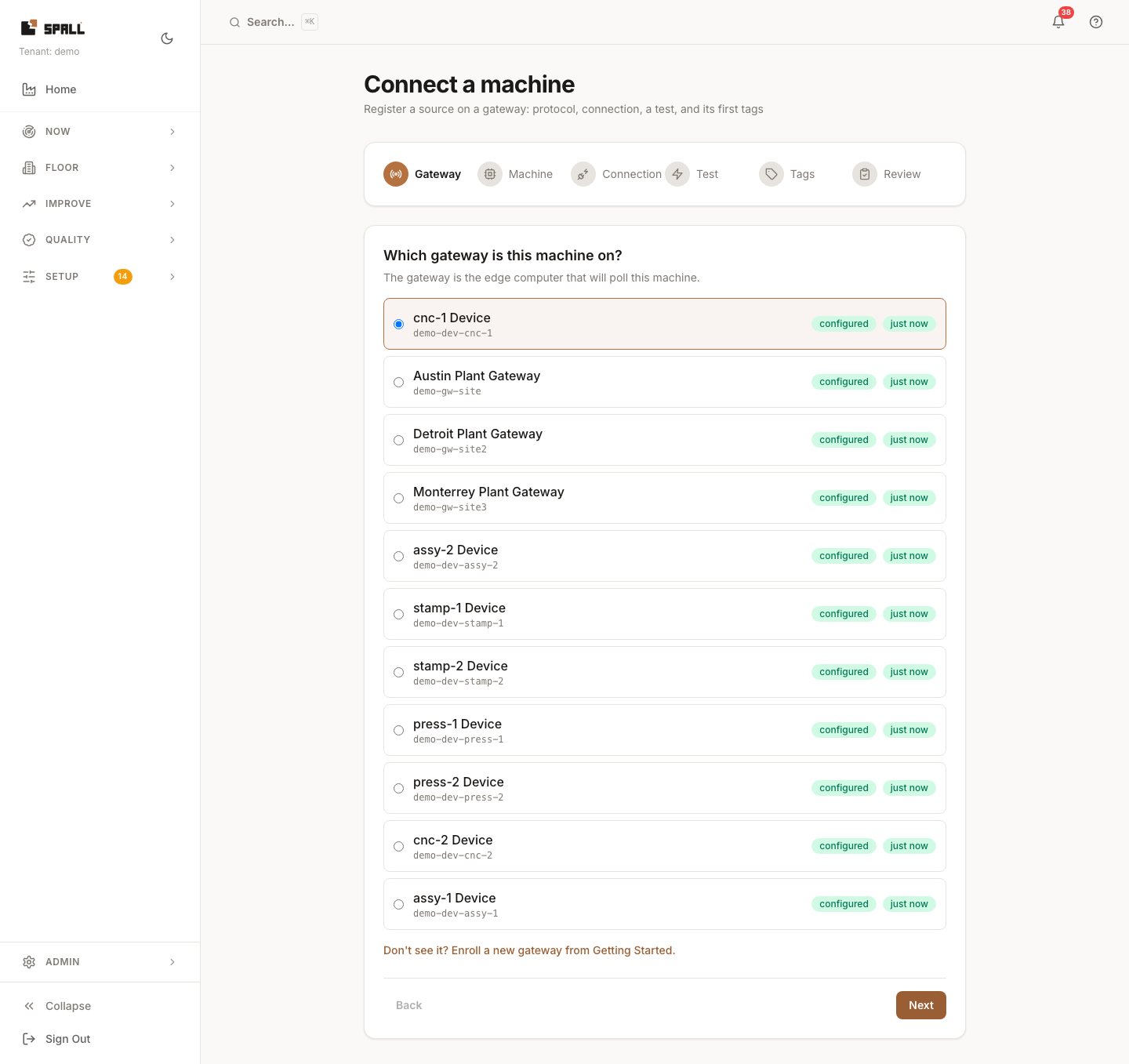 Pick the machine’s protocol, test the connection, then configure its tags one
of four ways: start from a template (pre-filled tag list for a common machine type), import a CSV
(checked row-by-row with a preview before anything is created), add tags manually, or run the opt-in
Discover tags assist, which browses the machine’s own address space. Today that only works for OPC-UA,
every other protocol, including EtherNet/IP and Modbus, shows the option disabled with no browseable
address space to explore. Every tag becomes an analytics signal on the node you attach the machine to.
An unmapped tag lands unclassified until given a purpose. See
How to manage tags for what happens after.
Pick the machine’s protocol, test the connection, then configure its tags one
of four ways: start from a template (pre-filled tag list for a common machine type), import a CSV
(checked row-by-row with a preview before anything is created), add tags manually, or run the opt-in
Discover tags assist, which browses the machine’s own address space. Today that only works for OPC-UA,
every other protocol, including EtherNet/IP and Modbus, shows the option disabled with no browseable
address space to explore. Every tag becomes an analytics signal on the node you attach the machine to.
An unmapped tag lands unclassified until given a purpose. See
How to manage tags for what happens after.
 Click into a source to see its full tag list, alongside scale, deadband, and each tag’s role, a
handful of options (setpoint, process variable, control output, state, counter, load, override, alarm,
alarm code, tool or program number, cycle time) that tell the AI layer what kind of signal it’s looking
at. Once a tag has real readings, the system looks at the shape of the values themselves and offers a
Suggested role, with an Accept button right there in the row, and an Apply all suggested
roles button above the list when several are ready at once. A suggestion is only ever a proposal, it
never sets the role on its own, and if a role was already set from a template and the readings do not
look like a match, the row says so plainly instead of going along with it.
Click into a source to see its full tag list, alongside scale, deadband, and each tag’s role, a
handful of options (setpoint, process variable, control output, state, counter, load, override, alarm,
alarm code, tool or program number, cycle time) that tell the AI layer what kind of signal it’s looking
at. Once a tag has real readings, the system looks at the shape of the values themselves and offers a
Suggested role, with an Accept button right there in the row, and an Apply all suggested
roles button above the list when several are ready at once. A suggestion is only ever a proposal, it
never sets the role on its own, and if a role was already set from a template and the readings do not
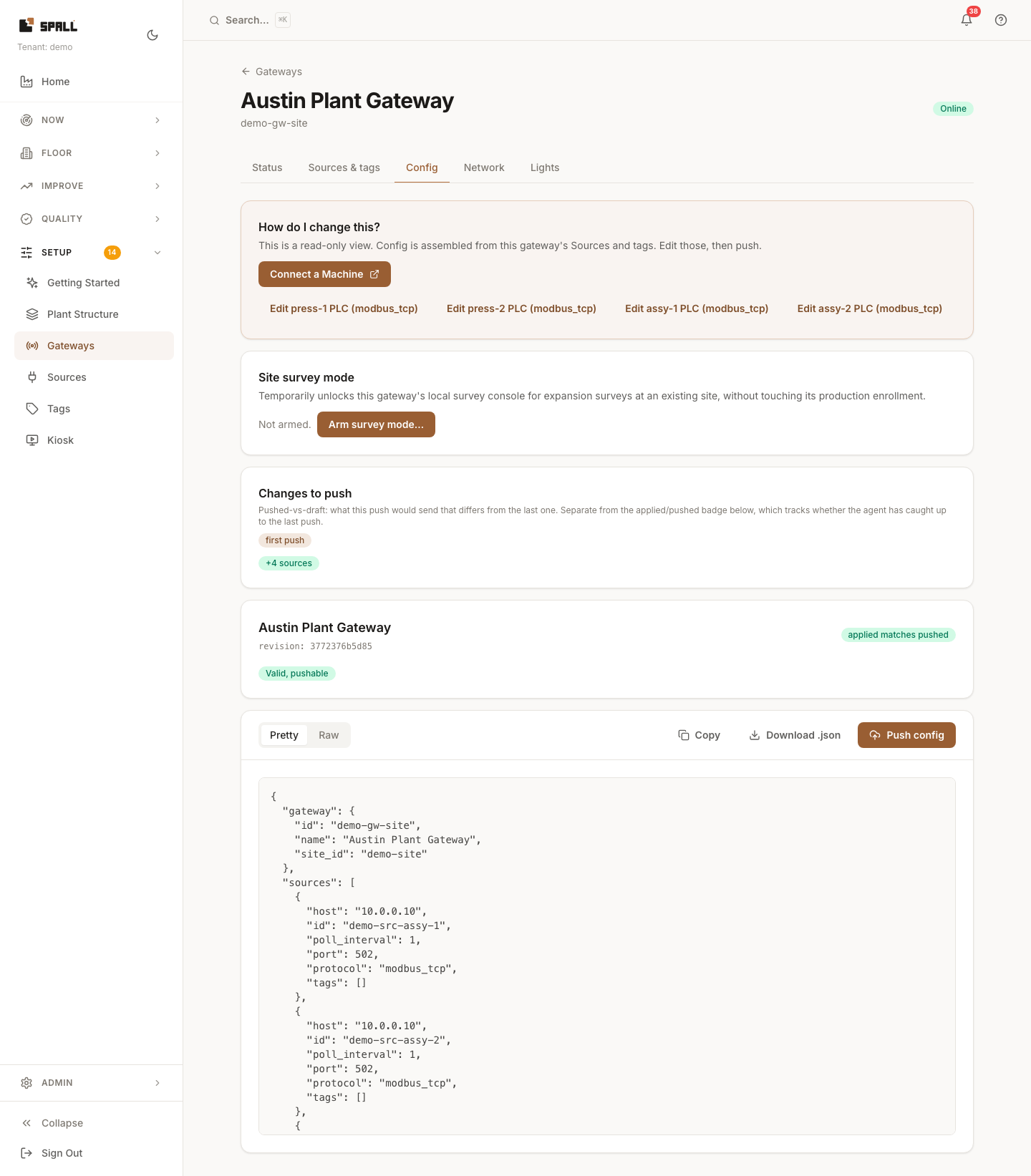
look like a match, the row says so plainly instead of going along with it. - Config: a read preview of the gateway’s assembled configuration (every source and tag it’s been told to
poll) plus Push to send it live, the UI reflects whether the edge agent actually picked it up. Below
that, Site survey mode lets you (admin/super_admin) temporarily turn on the gateway’s own local survey
console for an expansion survey at an existing site, without touching anything already running in
production. Click Arm survey mode…, pick a duration (24 hours by default, anywhere from 1 to 72),
and confirm, a banner then shows at the top of the gateway’s page on every tab for as long as it stays
armed, stating exactly until when and who armed it, so the capability is never on without a visible sign. Disarm turns
it back off early at any time, or just let the window run out on its own. If the gateway is offline when
you arm it, the banner says so plainly, the request is queued and takes effect once the gateway reconnects,
it is never shown as already active.
- Network: the device’s own self-reported network state, wired (
eth0 · 10.0.0.225 · default) or cellular (LTE ATT ▂▄▆ −71 dBm, shown only when a modem is detected), plus an amber “fallback path” badge if the default route has fallen off wired onto wifi/cellular. Use this tab first when troubleshooting an offline or cellular-failover device, see Troubleshooting: device offline or on cellular.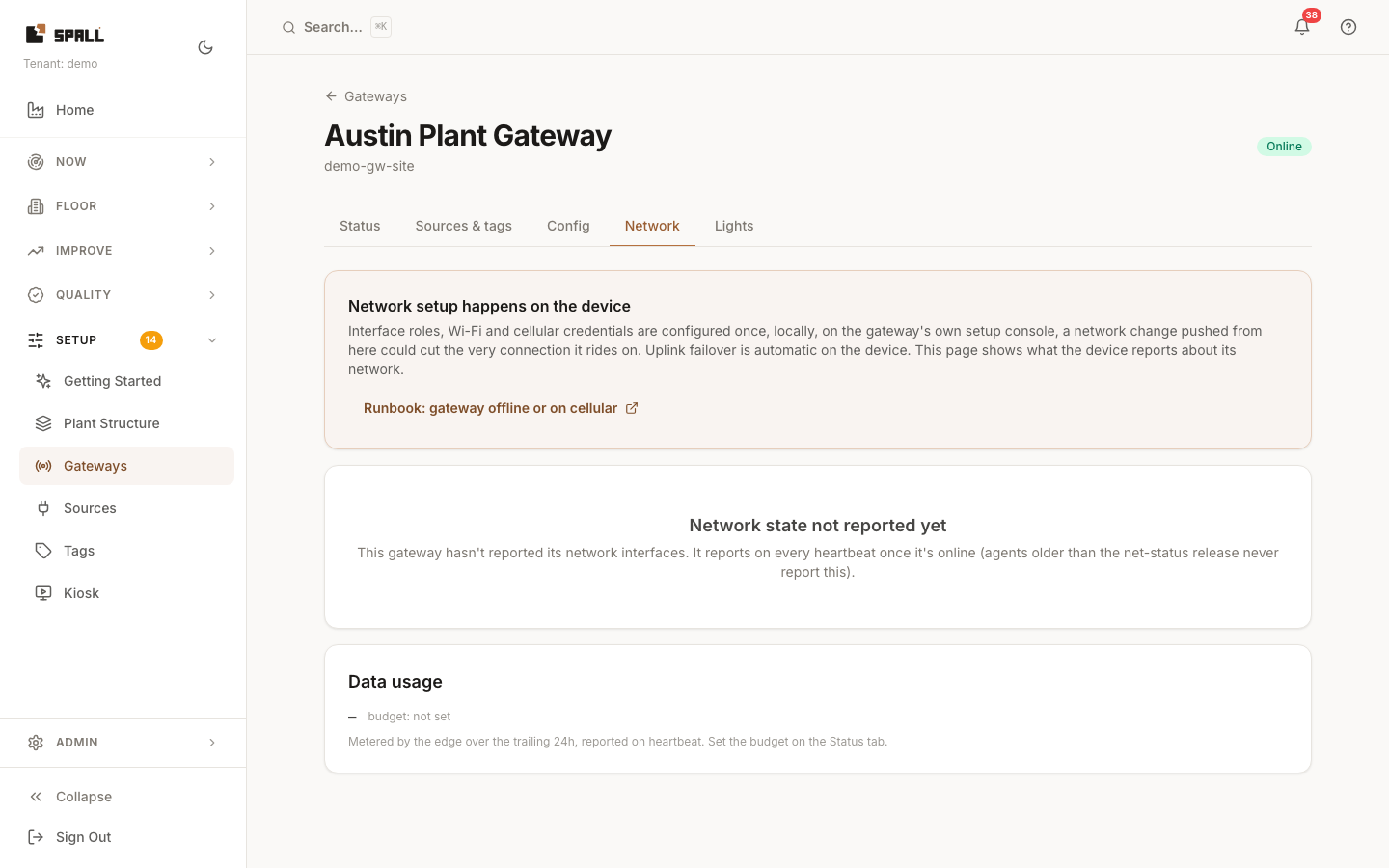
- Lights: any machine lights (bare relay beacon or a supported USB tower) configured on this gateway, each colored segment (red/amber/green/buzzer for a tower) showing a quiet status chip with its last-reported value and how long ago that was, “Not yet reported” until the gateway’s first check-in after you bind one. Plug in a supported USB tower and this tab offers to set it up on its own port. See How to set up a machine light for wiring one to an asset.
Notes
- Claim tokens are short-lived by design, mint one right before you need it, not in advance.
- Pin/reboot/diagnostics/budget controls are admin/super_admin only. A lower-role user sees them disabled with “Requires admin access, ask your administrator” instead of hidden outright, so the capability is discoverable even if you can’t use it yet.
- The network status line reports on the same heartbeat as the rest of the gateway’s health data, not real-time, expect it to lag a live outage by up to one heartbeat interval.
- A template’s derived/calculated tags (like a parts-per-hour rate) aren’t wired up by the wizard itself, add them afterward in Tags via the script editor.
- Pinning a gateway to a specific signed release happens on this page’s own Status tab, not on the Releases (“Software”) page, Releases is where you verify a build is signed, this page is where you apply it to a device.