How to set up two factor authentication
Wiki: Account concepts, Two factor authentication
When to use this
You want an extra code, on top of your password, before your account can sign in, or your tenant requires it for admin accounts and you have been prompted to set it up.
Steps, enroll
- Click Plan & API under Admin at the bottom of the sidebar (
/account), then the Security tab.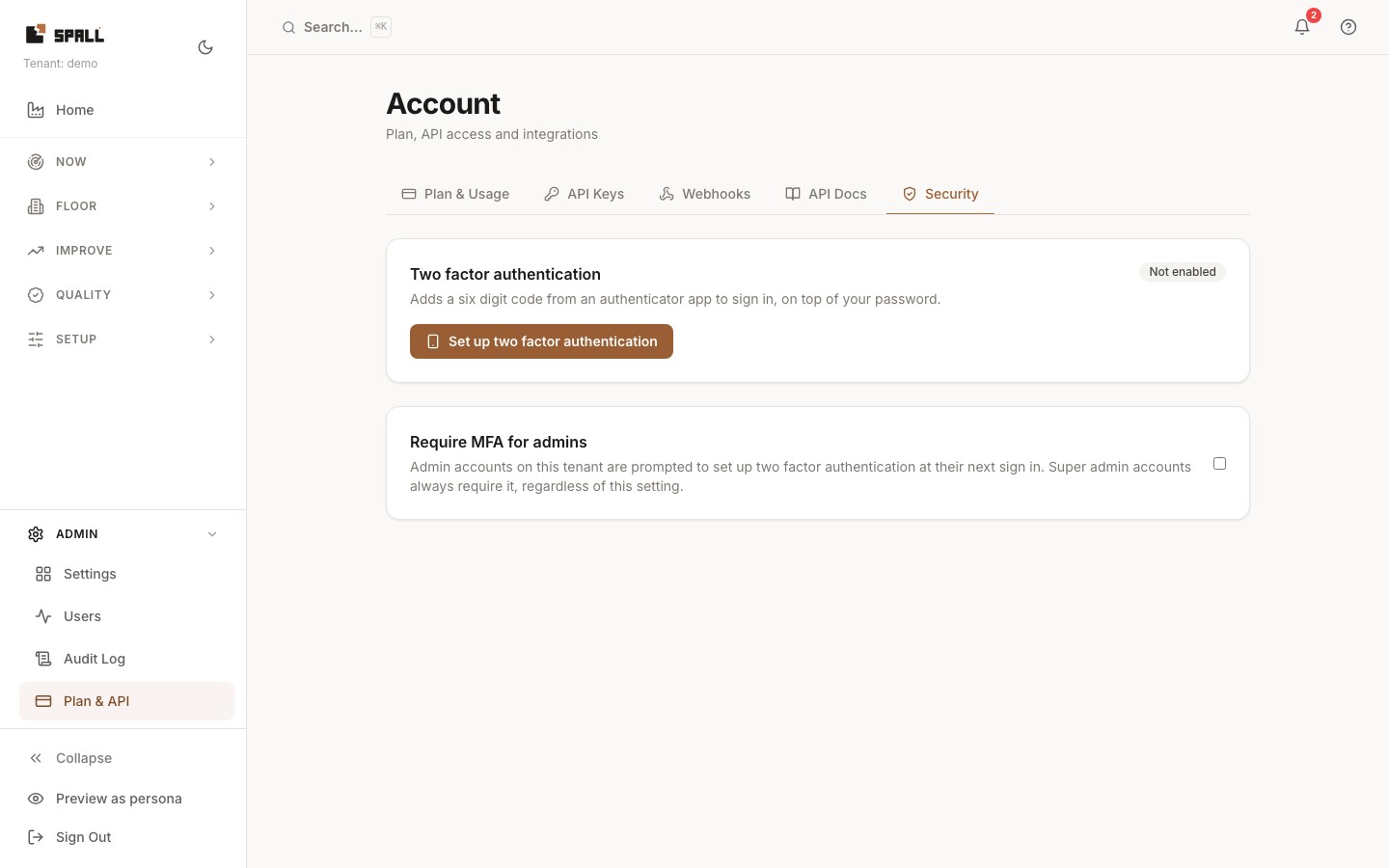
- Click Set up two factor authentication.
- Scan the QR code with an authenticator app (1Password, Authy, Google Authenticator, and similar apps all work), or enter the code shown next to it by hand if you cannot scan.
- Enter the current six digit code from the app and click Confirm.
- Save the ten recovery codes shown next. Each one signs you in one time if you ever lose access to your authenticator app. They are shown only once, write them down or store them somewhere safe before leaving this screen.
Steps, sign in afterward
- Enter your email and password as usual and click Sign In.
- On the verification step, enter the current six digit code from your authenticator app, or one of your recovery codes if you do not have the app, then click Verify.
Steps, running low on recovery codes
- Back on the Security tab, click Regenerate recovery codes.
- Enter a current six digit code from your app, or one of your remaining recovery codes, to confirm. Your old codes stop working immediately and ten new ones are shown, once. The Security tab shows a warning once you are down to two codes or fewer.
Steps, turn it off
- Back on the Security tab, click Disable two factor authentication.
- Enter your password, and a current six digit code from your app (or a recovery code), to confirm. Your account signs in with just a password again, and any unused recovery codes stop working.
If you lose your phone and your codes
If you lose access to your authenticator app and you have already used up or lost all ten recovery codes, you cannot get back in on your own, since two factor authentication is designed so nobody except you can pass that second check. Two people can still help:
- Your tenant admin can reset two factor authentication on your account from the Users page. This turns it off, the same as if you had disabled it yourself, so you sign in with just your password again and can set it back up when you are ready. You get an email confirming the reset happened.
- Spall support (hello@spall.cc) can do the same, for any account, including the case where you are the only admin your tenant has. Support calls you back at a number or channel already on file to confirm it is really you before resetting anything.
For admins, requiring it tenant wide
- On the Security tab, admins see a Require MFA for admins toggle. Off by default. Turning it on prompts every admin account on the tenant to set up two factor authentication the next time they sign in, with a reminder banner until they do. It does not lock anyone out, it is a prompt.
- Super admin accounts always require two factor authentication once they enroll, this setting does not change that.
Related
- How to manage API keys and webhooks, the other tabs on the same page