How to manage users and groups
Wiki: Setup concepts, Users and roles
When to use this
You need to add a user, remove someone’s access, help someone who’s locked out, curate what a specific person’s navigation shows, or organize users into groups for assignment and notification routing.
Steps
- Click Users under Admin at the bottom of the sidebar (
/users), a Users tab (default) and a Groups tab.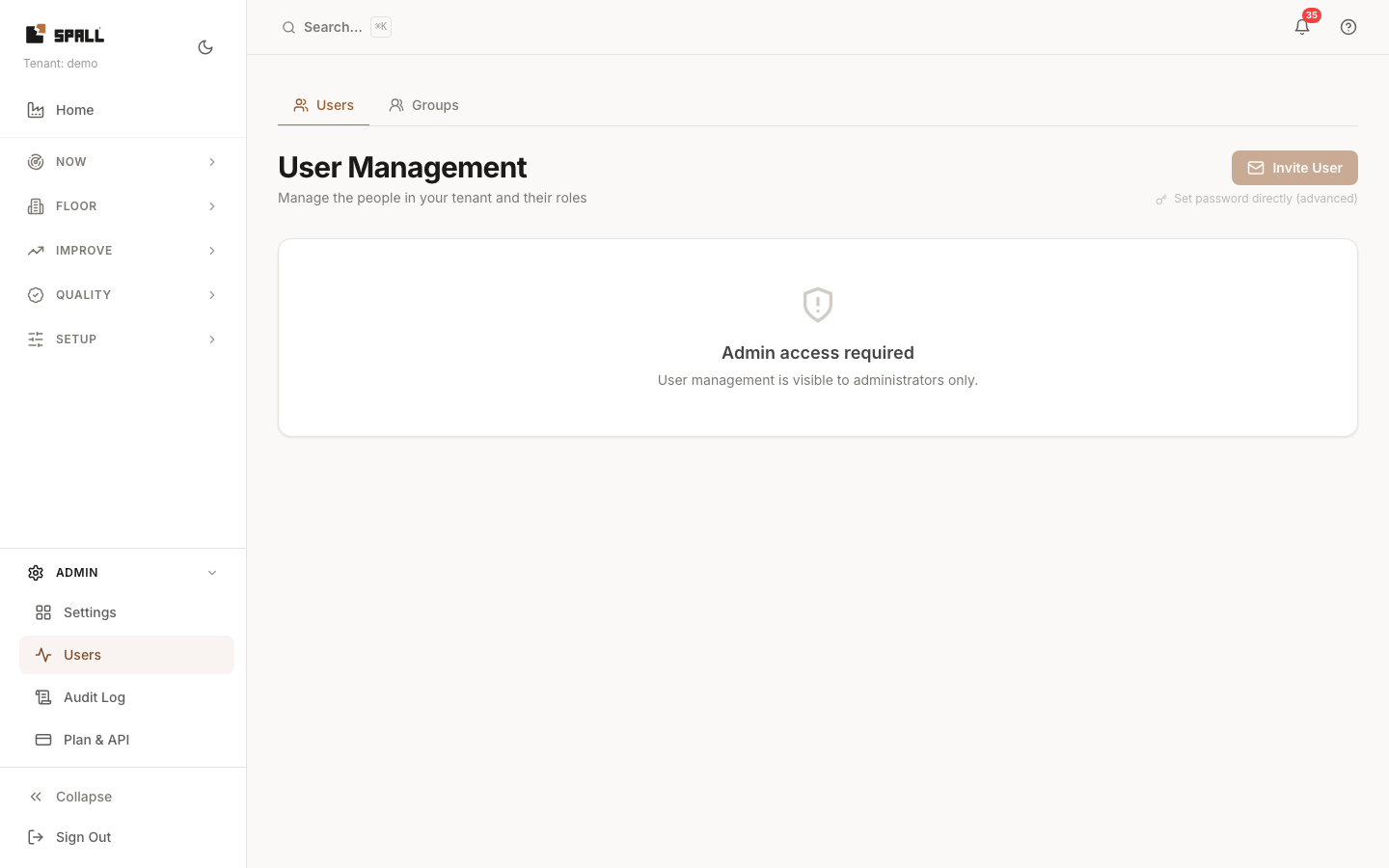
- On Users: click Invite User to add someone, they get an emailed link to set their own password and activate the account (Resend invite if it’s still pending). While inviting, optionally check one or more Persona boxes (Operator, Supervisor, Maintenance, Quality, Manager, Planner) for what this person does day to day, this curates their navigation to just the screens that persona uses. Picking more than one combines both (a supervisor who also does maintenance sees both sets). Picking none leaves their navigation unfiltered, same as today. Also pick a Digest (None, Daily exceptions, Weekly exec, or Both), a scheduled summary email this person starts receiving automatically once they activate, no setup on their end. It pre-fills by role and persona (Admin or a Manager persona gets Both, Viewer gets Weekly exec, everyone else gets your tenant’s configured default, changeable right there in the dialog), and you can always pick something different before sending. They can change or turn it off any time from their own Notification Settings. Set password directly (advanced) is a break-glass path for a seed account or when email isn’t set up, you choose and hand over the password yourself. Click Role to change someone’s role, Screens to curate which nav items a specific person sees and to change their persona later (curation only, their role still governs what the API allows. Changing persona there never rewrites a screen list you already hand tuned, click Apply persona preset(s) to screens to update it explicitly), Reset Pass for someone locked out, no support ticket needed, or remove access for a user entirely.
- Switch to the Groups tab (
?tab=groups) to create and manage user groups, used elsewhere in the app as an assignee target on Work Items and as an escalation target in Notification Settings.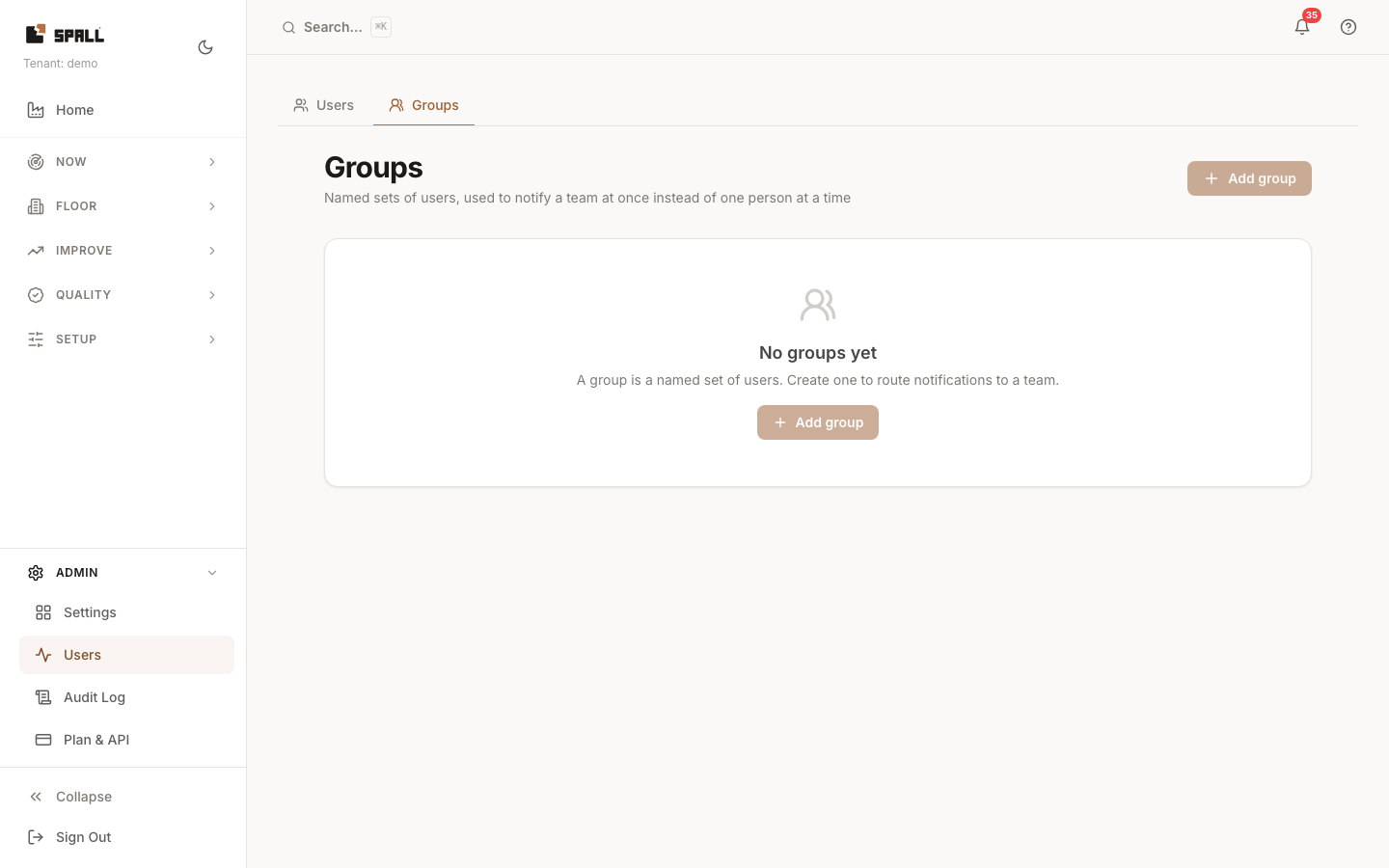
Notes
- A user’s role (
viewer,user,admin, orsuper_admin) determines which nav items and mutating controls they see everywhere else in the app, Software (Releases), Tenants, and Errors in particular are hidden entirely for anyone belowsuper_admin. - Persona is separate from role: role controls what a person is allowed to do, persona is just what job they do day to day. Persona orders Home cards and supplies a default landing page. Screen access controls the available destinations.
- User Groups is the second tab on this page.
- Want to see the app the way a persona sees it, for a demo or a training session, without editing anyone’s real settings? Admins and super admins get a Preview as persona button near Sign Out in the sidebar. Pick one or more personas and start the preview, a banner appears reminding you a preview is active with a one click Exit preview. The preview only changes what the menus offer, it never changes what your own account is permitted to do, and it is never saved anywhere, it clears the moment you close the tab.