How to prepare a shift handoff brief
Wiki: Floor concepts
When to use this
Your shift is ending and you want the incoming shift to get a complete brief in one screen, no meeting required.
Steps
- Near the end of shift, click Plant, then Shift Handoff (
/handoff). Confirm the report window at the top, the first time you ever open this page it resolves to the current Shift automatically from the real shift schedule, after that it remembers whatever you last picked, here or anywhere else in Spall. - Pick who the report is about, next to the window control. Whole plant is the default, OEE, production, and downtime for every machine combined. Pick a site, area, work center, machine, or cell to narrow the subject. The URL preserves your selection when you refresh or share the page. A cell made from an arbitrary group lists its machines instead of presenting a combined OEE.
- Review the assembled page top to bottom:
- OEE for the shift, alongside deltas vs. the prior shift and vs. the best comparable shift in the last 14 days (was this a normal shift or an outlier), shown for a single machine.
- Production, good, not-good, total, and first-pass yield for the shift.
- Top downtime reasons for the shift, with minutes and estimated dollars lost for each.
- Shift notes, the window’s recent logbook entries.
- Open alerts.
- Open jobs, each one shows its job number and links straight to the job.
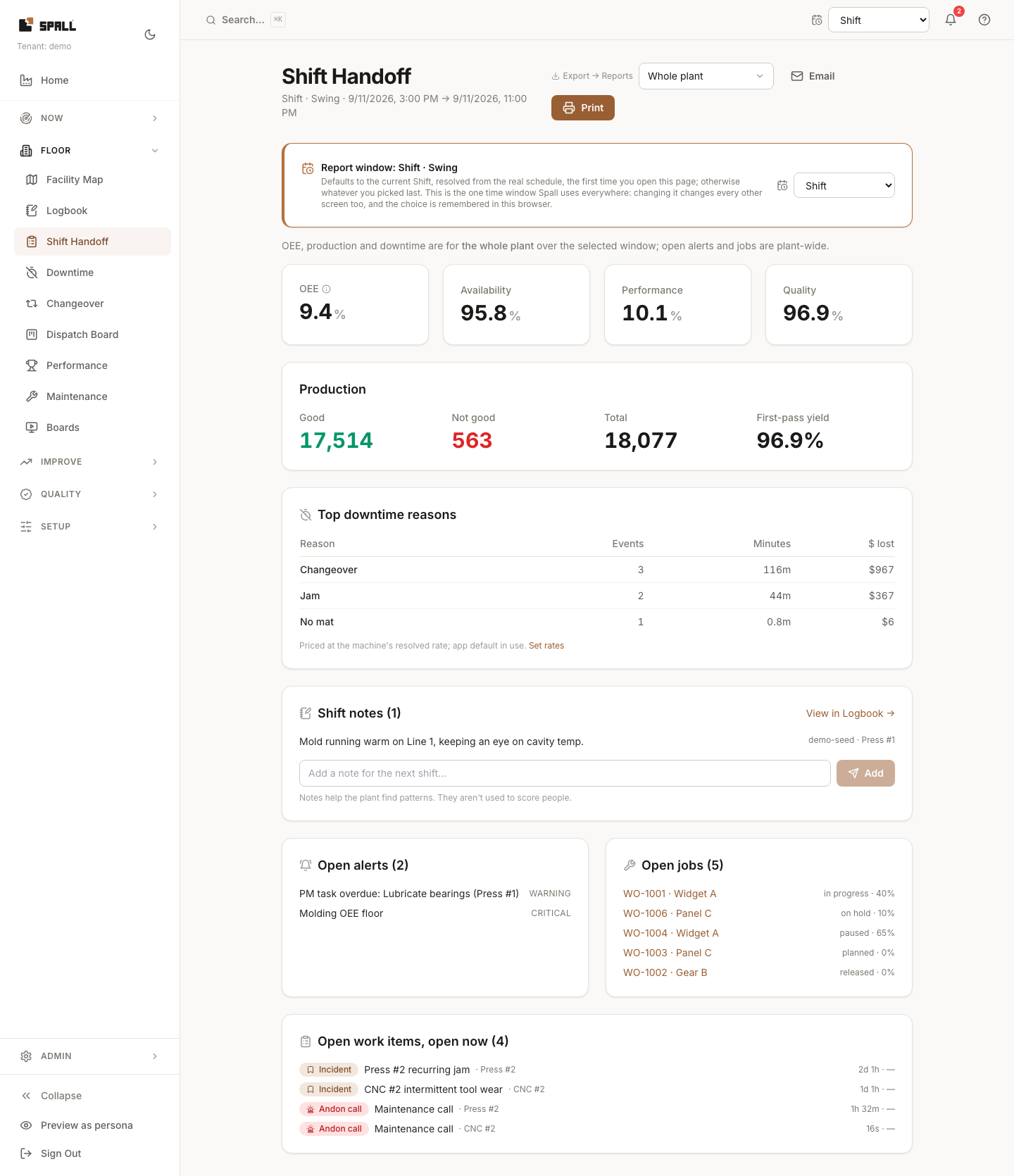
- Walk the incoming supervisor through anything unresolved, open alerts and open jobs in particular carry directly into their shift.
- Use Previous and Next to move through machines in name order without changing the report window. Next from Whole plant opens the first machine. At either end, the unavailable direction is disabled.
- Click Download machine reports to save one ZIP file with a text report for each machine in the selected scope. The archive includes its report window and a manifest listing the included machines.
- Click Email to send the brief to the incoming shift, or Print for a paper copy. Choose Email machine reports in the recipient dialog to attach the same ZIP. A recipient’s paused notifications and email setting still apply.
Notes
- Open alerts, jobs, and work items describe what is open now for the selected subject. OEE, production, downtime, and notes use the report window.
- Every section on this page is pulled live from the same underlying data other screens use (OEE, downtime pareto, alerts, jobs), it’s an assembly, not a separate data source, so numbers here should always agree with Downtime/Alerts/Production for the same window and subject.
- Shift notes only shows the window’s last few entries. Click View in Logbook on that card for the full, searchable history, same notes, same table, just not trimmed to one shift.
- You can also reach these notes from the machine they’re about. Open any machine’s Node Detail page and its Notes tab shows recent notes for that machine, with the same View in Logbook link, filtered to it. On a site, area, or line, that tab rolls up notes from every machine underneath it, the same scoping the rest of Spall’s hierarchy uses. See How to check plant status and drill in.