How to verify signed edge-agent releases (super_admin)
Wiki: Setup concepts, Releases
When to use this
Before pinning a gateway to a new agent version on its detail page, you want to confirm the build was actually published with a valid signature.
Steps
- As a super_admin with two-factor authentication set up, click Operations under Admin at the bottom of the sidebar,
then Releases (
/ops/releases) on the console’s own left rail, hidden entirely for lower roles. The page has two sections: Agent releases (OTA), signed edge-agent builds, and, below it, Golden images (flash) for provisioning new hardware, visible to admins and above.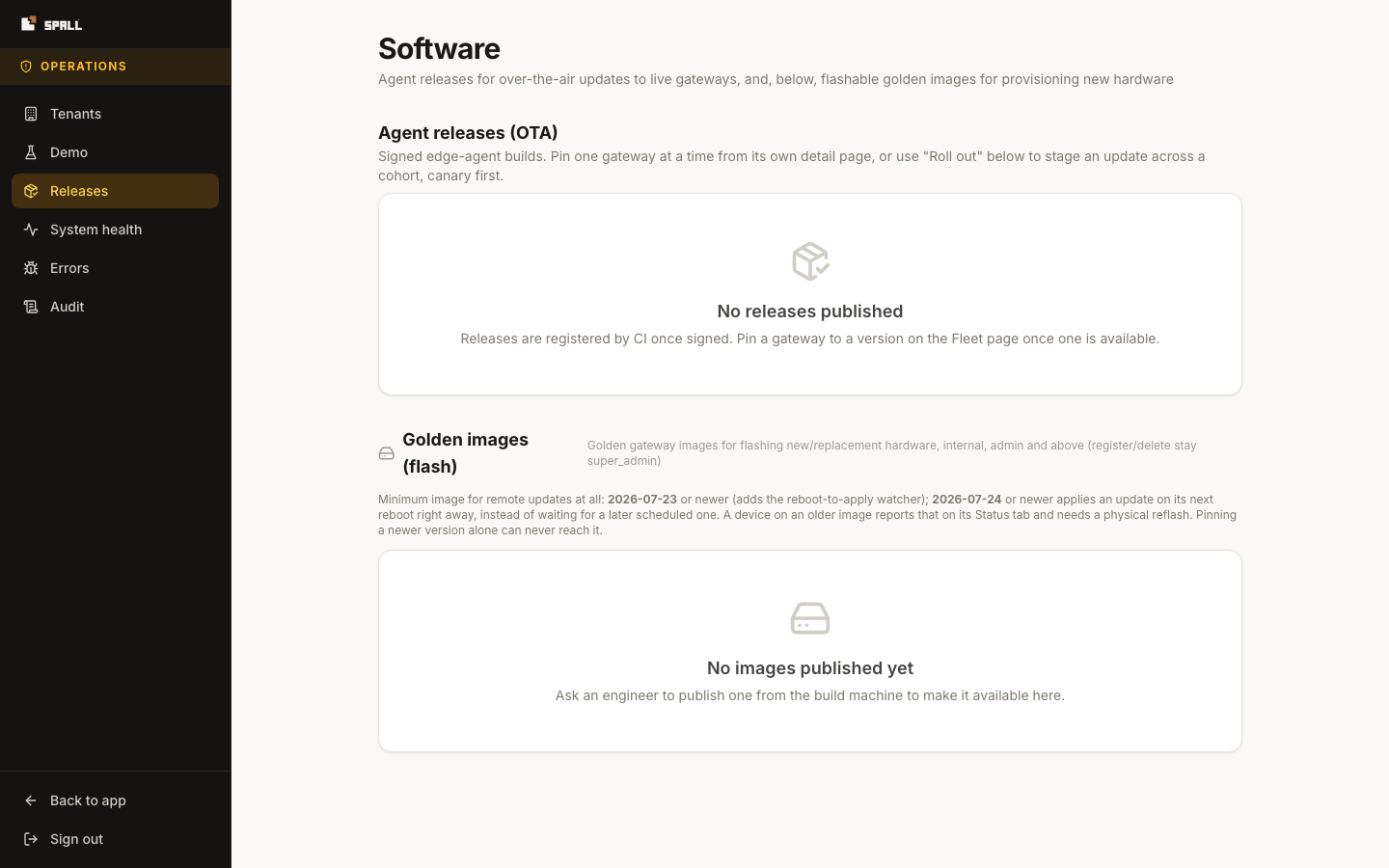
- Review each release row: version, artifact URL,
sha256, and a Signed / Unsigned badge, plus whether the artifact bytes have actually been uploaded. - Only trust versions marked Signed (a valid Ed25519 signature) before pinning them as a gateway’s target version.
Notes
- This screen is read-only by design, registering a new release is a CI-only action requiring the private signing key, not something done from the browser, even by a super_admin.
- To actually pin a gateway to a verified version, go to a gateway’s own detail page, Gateways → pick a gateway → Status tab → the “Update this gateway…” dropdown. Every version that shows up here as Signed is exactly what populates that dropdown. There’s no separate place to type a version by hand, so a typo can’t ever pin a release that doesn’t exist here. See How to manage gateways: the gateway home.