How to tell Spall what a machine is running
Wiki: Floor concepts, Downtime
When to use this
You want product level context, scrap patterns, downtime by product, rate by product, without ever scheduling a job. Many plants do not schedule production runs in software, but the machine still knows what it’s making. Tell Spall that directly and it feeds every report the same way a scheduled job would, labeled as logged from the floor.
Steps
- On a claimed station’s tablet, open the Job tile. If the machine has no scheduled job to pick from, the tile’s only prompt is What’s running?, tap it. If there ARE scheduled jobs to pick from, tap the smaller What’s running? link instead of picking one.
- Search for and tap the product the machine is actually making. Don’t know the product yet, or just want to log that the machine is running something, tap Just track this run instead. This opens an unlabeled entry, the tile shows Unlabeled run where the product name would go. Name the product later from the Change flow on the tile, or from the job’s page in the admin app, it updates the same entry, nothing gets re-bucketed or duplicated.
- Enter your operator PIN the first time (same shared sign in as counting good/scrap parts), this attributes the entry to you.
- The tile now shows the product name (or Unlabeled run) and a Logged from the floor label instead of a progress bar, there’s no target quantity to hit, just what’s running.
- To switch products, tap Change and pick a different one, the old entry closes and a new one starts. To say the machine isn’t running anything right now, tap End.
- From the admin side, every logged from the floor entry shows up on Jobs (
/work-orders) too, filter by Origin to see only these, or only scheduled jobs, see How to manage jobs.
Jobs close themselves if you forget to end them
A logged from the floor entry left open all weekend would otherwise sit there claiming the machine is still running. Spall closes these automatically and tells you why:
- The machine went idle. If parts stop being counted for a while (an hour by default), Spall closes the entry at the moment the parts actually stopped, not whenever it happens to notice. A slow cycle part gets more patience automatically, Spall widens the idle window based on the job’s own cycle time so a long, legitimate cycle never gets cut off mid part.
- The shift ended. Off by default. Turn it on if you want floor entries to close at the end of the shift they started in.
- A hard time limit. A backstop, on by default at 24 hours, in case nothing else catches a forgotten entry.
- Working on this run and don’t want it to close yet? Tap Keep this run open on the tile (or on the job’s page in the admin app) to pause the idle and shift closes for that one entry only. The 24 hour backstop still applies even while paused, it’s patience, not a way to leave something running forever. Tap Unpin to turn auto close back on for it.
A job closed this way shows a plain note like “closed automatically, machine went idle” on the Jobs list and the job’s own page, right next to its status. It’s never treated as an error, just a record of what happened.
If a station tablet is still showing that run when it closes, the tile says so within moments: This run ended, with the same plain reason underneath, and a Start the next run button that takes you straight to picking what’s running now. The count buttons go away, and if a tap lands right as the run closes, the tile answers “This run already ended” instead of recording nothing without telling you.
Admins can turn any of these on or off, and change the timing, from the Jobs page. A specific machine or line can also be set differently from its own KPIs and targets tab. See How to manage jobs.
Set it up once per machine, then it’s automatic
If a machine reports its own program or recipe number on a tag, Spall can open and close these entries by itself, without anyone tapping a tablet.
-
On the Tags page (
/tags), find or create the tag that carries the machine’s program number, and set its meaning to Program tag. -
Open Product Translations from the Settings page, or go straight to
/program-tag-mappings. Every value the tag reports shows up here.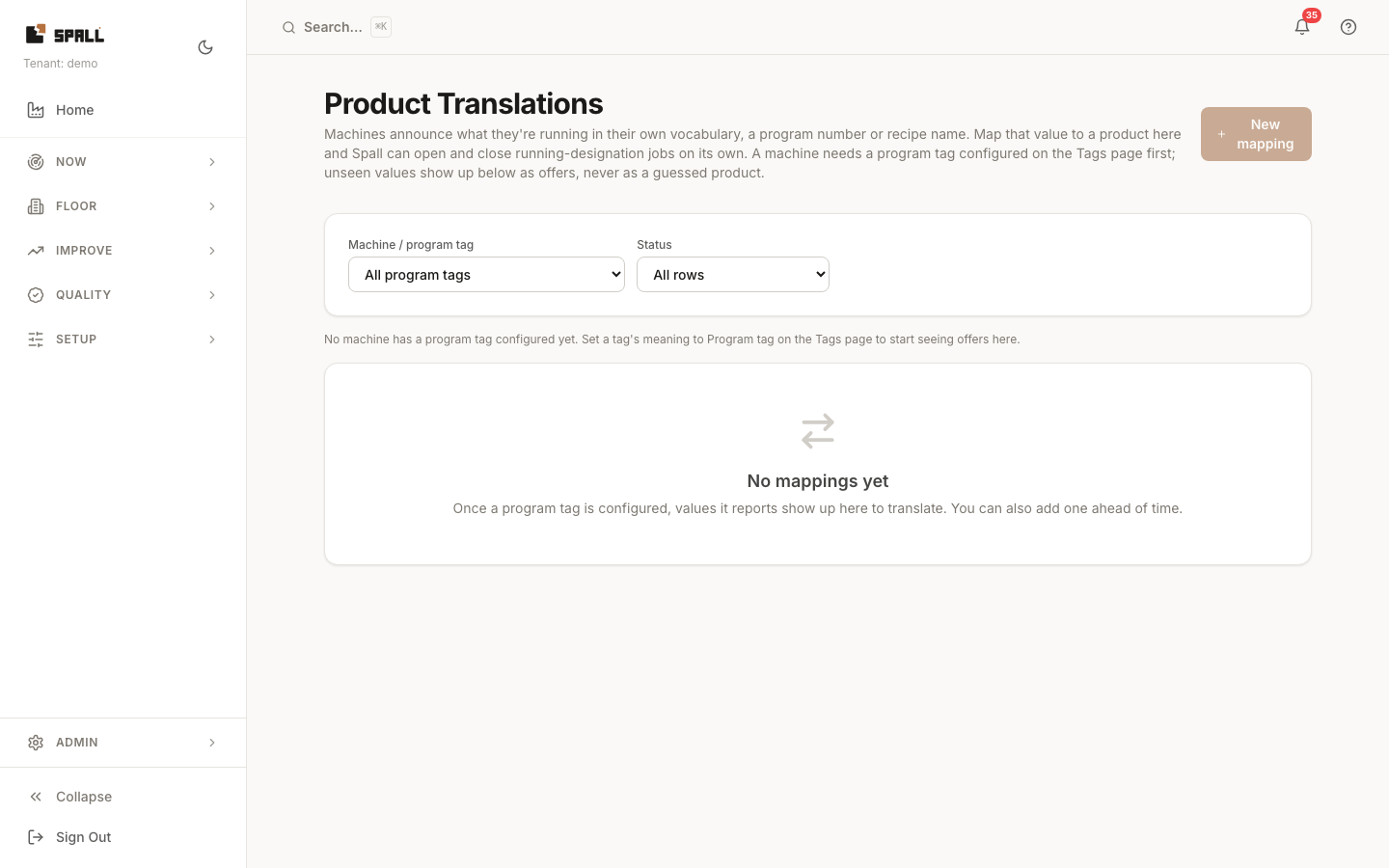
-
A value nobody’s told Spall the meaning of yet shows an Unmapped offer badge, pick the product it means from the dropdown next to it. Spall never guesses or creates a product on its own, an unmapped value just sits there as an offer until you assign one.
-
Once a value is mapped, the next time the tag reports it, Spall opens a logged from the floor entry for that product automatically, and closes it when the tag’s value changes to something else that’s mapped. A scheduled job already running on that machine always takes priority, the automatic entry never interrupts a real job.
-
You can also map a value ahead of time, before the tag has ever reported it, with New mapping.
Notes
- Manual entries from the Job tile always work, with or without any tag mapped, the mapping only adds automation on top.
- If a machine’s program tag reports a value that isn’t mapped, Spall records the sighting but takes no other action, it never guesses which product that means. It also won’t end an entry you set manually just because the tag reports something unmapped, map the new value or tap End to move on.
- A manual entry from the Job tile wins and stays put, even on a machine with an active mapping. Spall only opens or closes an automatic entry when the tag’s value actually changes to something new, never just because time has passed. If you manually switch a machine to a different product while its tag keeps reporting the same, already mapped value, that manual entry stays exactly as you left it, Spall does not switch it back. It only acts again once the machine itself reports a different value.
- These entries are machines only for now, not whole lines or cells.
- Missing data still renders as a dash instead of a made-up number, same as everywhere else.