Troubleshooting: device offline or on cellular, reading the uplink status
Wiki: Setup, edge and devices
When to use this
A gateway shows offline on Gateways, or its Status tab says it’s on WiFi/cellular instead of the wired uplink you expected, and you want to know why before you drive to the plant or open a support ticket. Most of the time the answer is already on the device, you’re reading it, not guessing it.
What “uplink” actually means on the box
A gateway’s network interfaces each have a role, set in its config (never hand-edited on the device):
uplink (this is how it reaches the cloud, wired, WiFi, or cellular), plant (the machine/OT side, it can
never become the internet route, even if the machine network’s DHCP hands out a gateway), or disabled. When
a site has more than one uplink path (e.g. wired and a cellular modem as backup), each gets a priority, wired beats WiFi beats cellular by convention, and the gateway fails over/back between them on its own.
Nobody re-plugs anything or restarts a service.
Step 1, Check the gateway’s Status tab first
Open Gateways, click into the gateway, and read its Status tab
(the gateway home). It self-reports on
every heartbeat:
eth0 · 10.0.0.225 · default, on its wired uplink, normal.LTE ATT ▂▄▆ −71 dBmplus an amber “fallback path” badge, it has failed over off the wired uplink onto WiFi or cellular. This is often expected behavior working correctly (the wired link dropped and the box kept sending data), not a fault. Read it as “something happened,” not “something’s broken.”- Right next to that badge, when the link watchdog (the on-device escalator described in Step 2) has a
transition to report, this tab shows the reason and when inline, e.g.
fallback: 5 more failures after a bounce, handed off to next-priority uplink 14:02. This is the same data the on-device console shows (Step 2), surfaced directly here, usually you don’t need to open the console at all anymore. It only appears once the box has actually bounced or failed over at least once. A healthy gateway (or one running an agent build that predates this) shows the plain line above with nothing extra. - A Data usage line further down shows MB/day and, once near or over the configured budget, a red/amber “near budget” or “over budget” badge, a cost signal, not a connectivity fault. The gateway also automatically switches to a leaner cellular transport preset (bigger batches, compressed) the moment it’s actually on a metered link, so a WiFi outage that fails over to LTE doesn’t blow through the month’s data before anyone notices.
- No network line at all, either the gateway hasn’t heartbeated since this feature shipped, or it’s on an agent build that predates it. Check “seen Xm ago” before assuming something’s wrong.
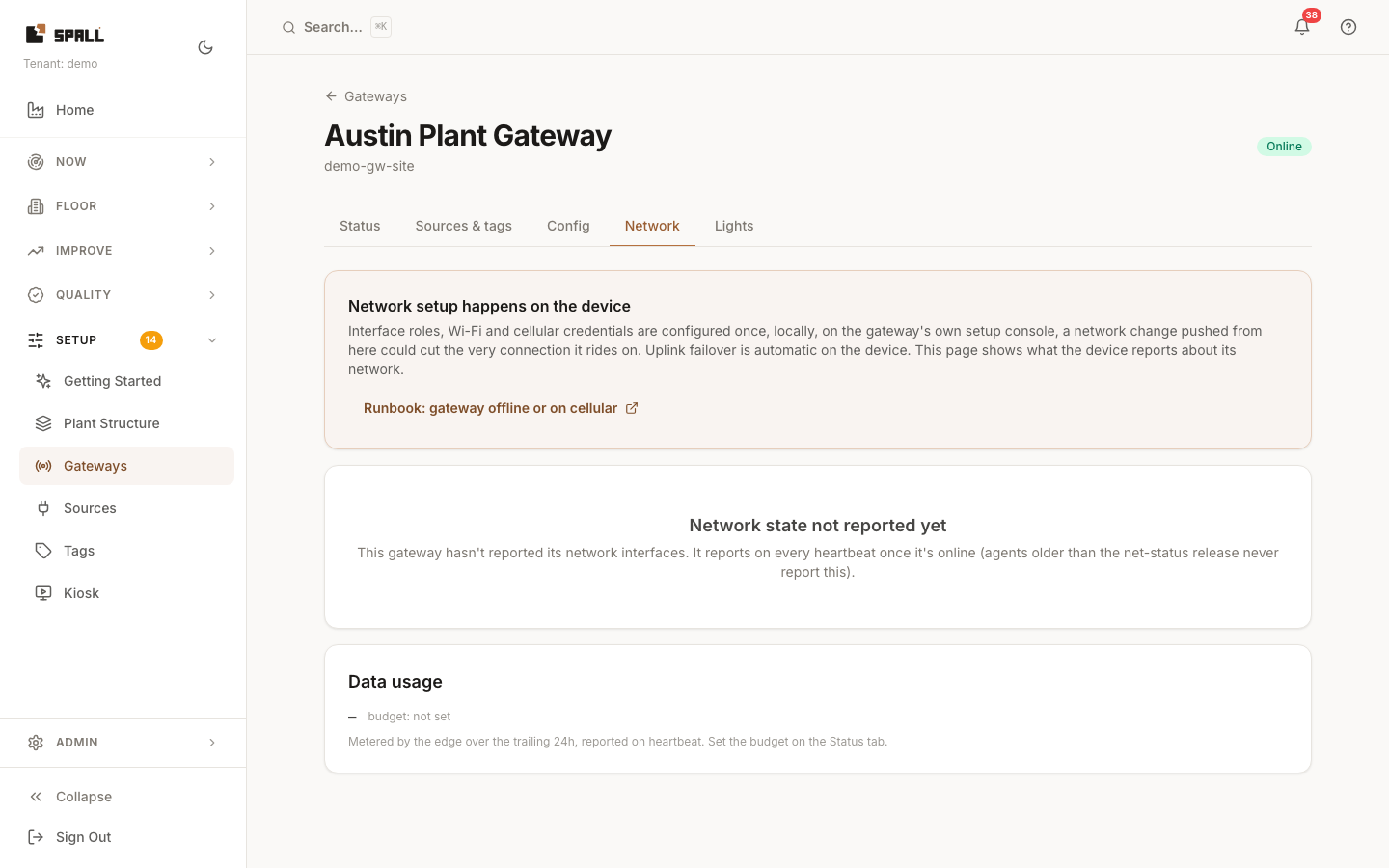
For the full breakdown behind that summary line, open the gateway’s own Network tab: a table of every reported interface (type, up/down state, IP, which one is carrying the uplink, traffic in/out), a Cellular modem card (carrier, technology, state, signal) when the gateway has one, and the same data usage figure in its own card.
If the gateway is fully offline (no heartbeat at all), neither tab can tell you why, that’s Step 2.
Step 2, Read the reason on the device itself (when the app can’t reach it)
The Status tab tells you what’s active, and, once the box has bounced or failed over at least once, why, right there (see Step 1 above). The one case it can’t help with is a gateway that’s fully offline: no
heartbeat means no reason in the app either. For that, open the on-device console at
http://<gateway-ip>:8080 on the plant network (see
set up a gateway: hardware to green if you don’t already know the
gateway’s LAN IP). Its status page includes the live network state and the reason/timestamp for the last
transition, the same data the app reads, straight from the source. This works even when the cloud uplink
itself is down, the console never depends on it.
Step 3, What to actually do about it
- Failed over and stayed there for a while, that’s the box doing its job (automatic failover), but a wired/WiFi link that doesn’t come back deserves a real fix: check the cable, the switch port, or the site’s WiFi AP. Failback is automatic once the primary uplink is actually healthy again, you don’t need to do anything on the device once it’s fixed.
- Bouncing repeatedly (Status tab keeps flipping), usually a flaky physical link or a weak cellular signal, not a software problem. Check cabling/antenna placement before escalating.
- Fully offline, no heartbeat, console unreachable too, that’s beyond what any remote read can tell you. Confirm power and that some uplink (even a phone hotspot for a quick check) is present at the site. If the box is dead, the fix is a swap, not a repair, see support below.
- Plant/OT-side machines went quiet but the gateway itself is online, that’s not an uplink problem at all. The plant-role interface never carries the internet route, so it can’t be “competing” with the uplink. Check the machine-side wiring/switch instead, manage gateways: the gateway home has the connection-test flow.
- A “Remote commands unavailable: device link down since X” badge on the gateway’s Status tab, this is the answer to “why didn’t fetch-diagnostics/a remote reboot/an update pin do anything”: the gateway’s own control channel has been down since the time shown, so nothing can be sent to it right now even though it may still be sending readings up fine. Treat it the same as the offline cases above (check the physical link, power, or site connectivity), it clears on its own the moment the device reconnects, no action needed on it directly.
- Need help from Spall support? Support can pull diagnostics remotely with your consent, nothing is open by default. If a hands-on look is needed, support may send you a small plug-in access device that only works while it’s physically connected to your gateway.