How to manage workforce: shifts and operators
Wiki: Setup concepts, Shifts and schedules
When to use this
You need shift-scoped screens (Production, Shift Handoff, Reports) to know the correct time windows for your site, or you need to manage the roster of operators who can be identified on a claimed station.
Steps
- Click Define your shifts on Getting Started, or Shifts &
workforce on Settings, or go straight to
/shifts, a Shifts tab (default) and an Operators tab.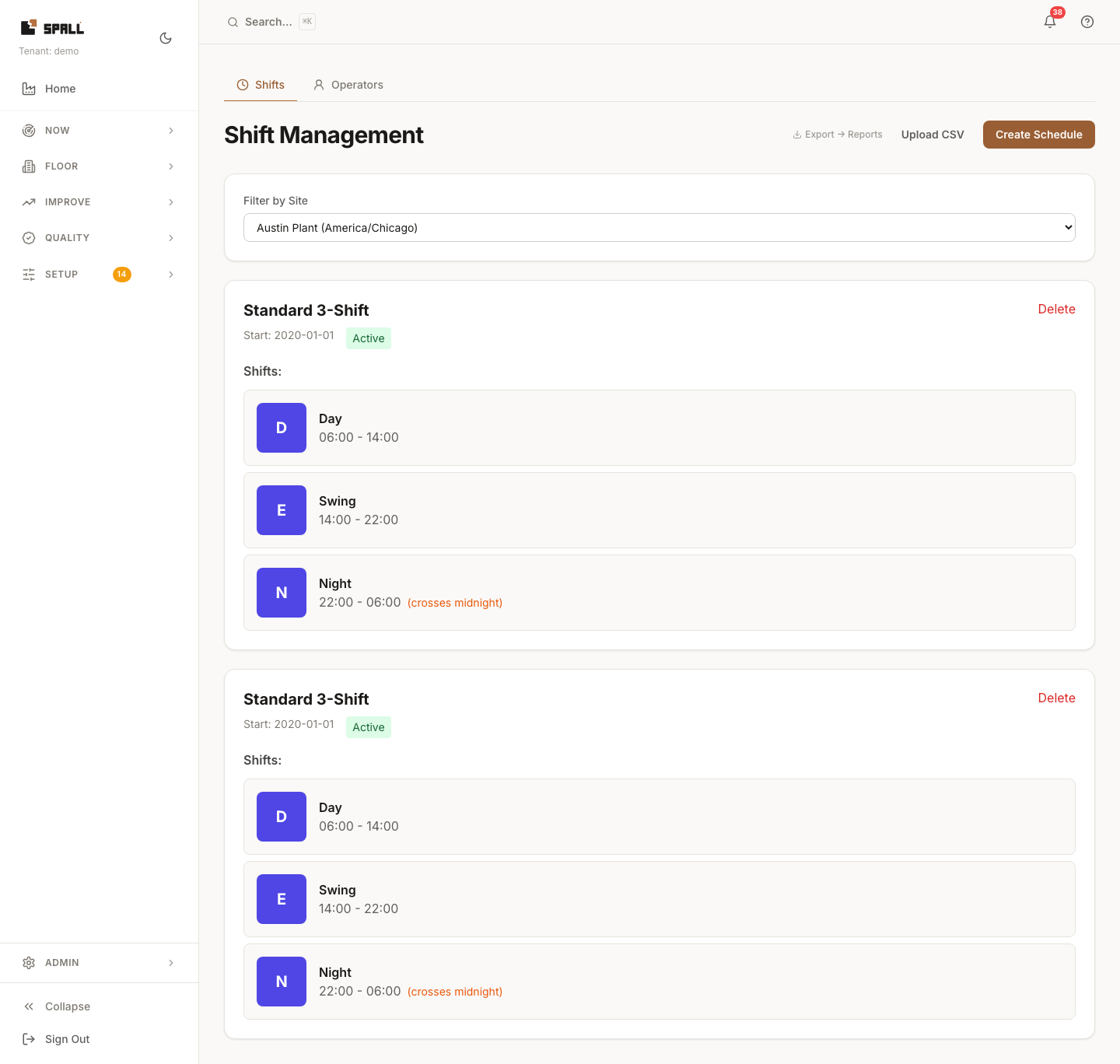
- On Shifts: filter the list by site if you manage more than one. To add a single schedule, use the form (site, shift name, start/end time) and save. To bulk-load schedules, click Upload CSV, pick a site, name the schedule, set an effective start date, and upload the file. Delete a schedule you no longer need. An empty site says so explicitly, “No shift schedules found. Create one to get started!”, rather than showing a blank page.
- Switch to the Operators tab (
?tab=operators) to manage the roster operators identify themselves against on a claimed station, add, edit, or remove an operator here.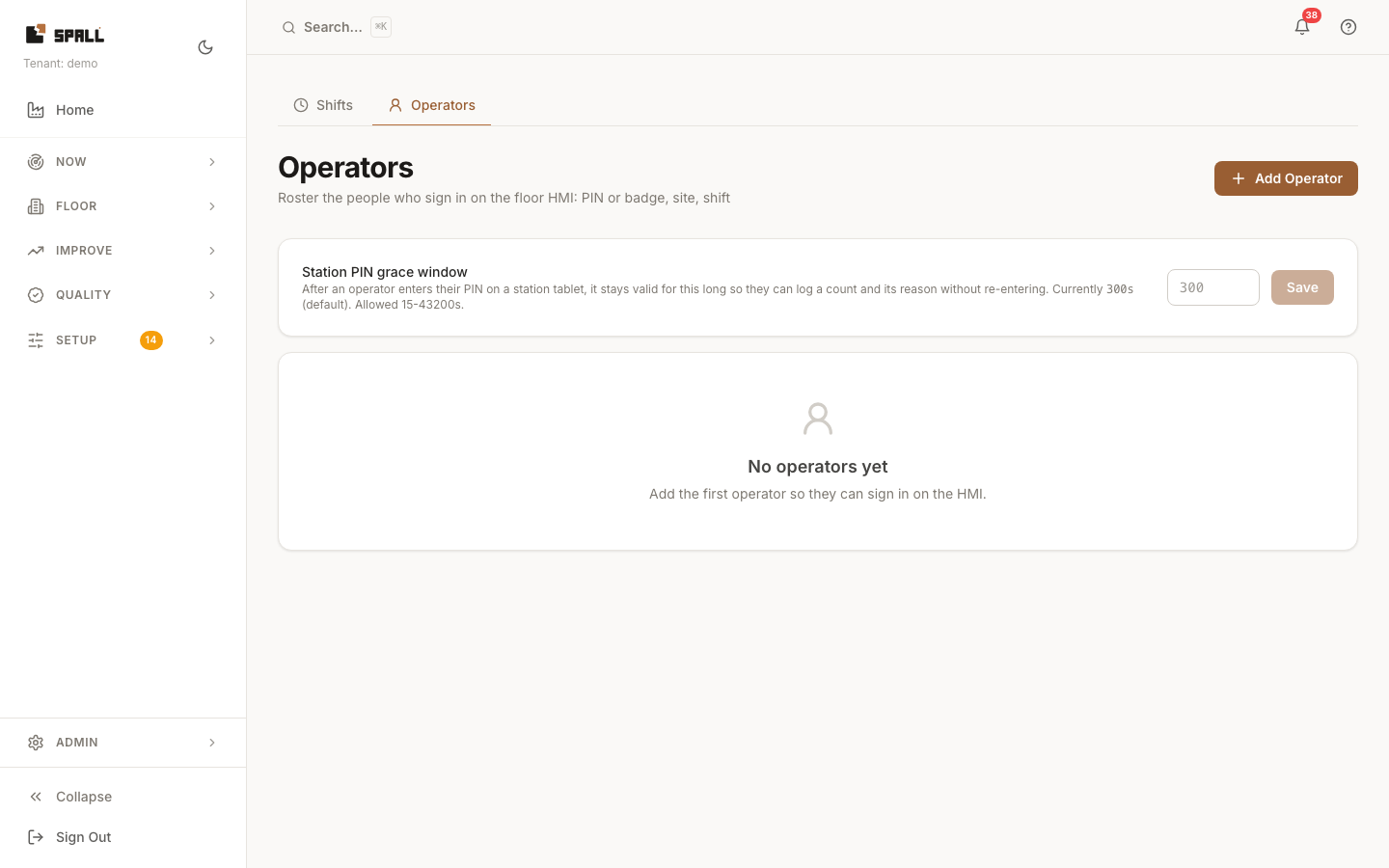
Notes
- Shifts and Operators are two tabs on the Workforce page.
- Shift-scoped analytics (the shift comparison chart on Reports, and questions the AI answers about shift performance) can only attribute an event to a shift once a schedule covers the site and time it happened. Until you add one, those screens say so plainly instead of showing an incomplete picture as if it were the whole one, add a schedule here to close the gap going forward. Events recorded before a schedule existed stay unattributed. They aren’t retroactively reassigned once you add one.