How to manage work items: incidents, andon calls, and repairs
Wiki: Now concepts, Work Items
When to use this
You’ve spotted something worth investigating, an operator called for help, or a machine needs a repair, and you want one queue and lifecycle for incidents, andon calls, and maintenance repair requests.
Steps
- Click Work Items in the sidebar (
/work-items), right after Alerts.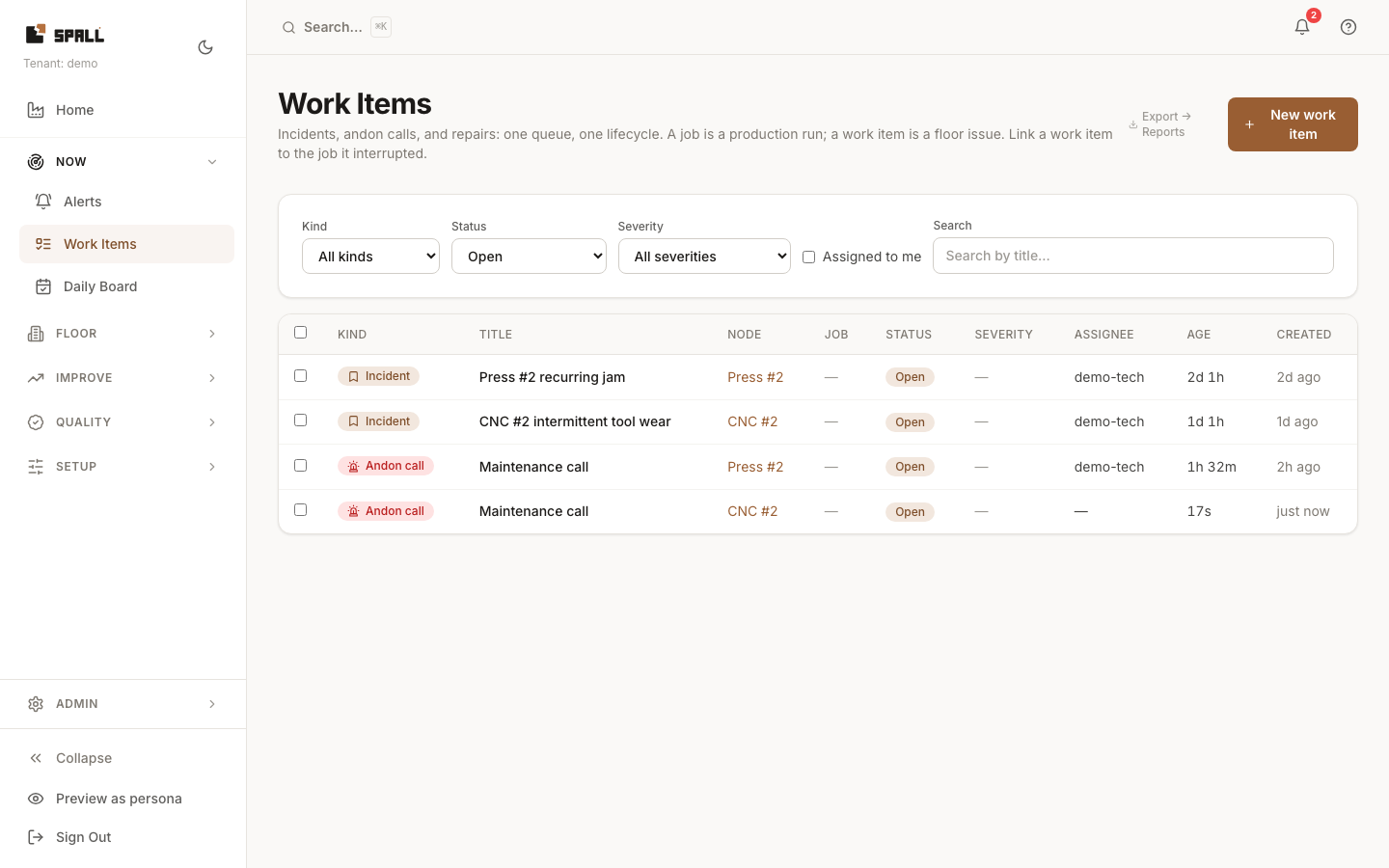
- Filter by Kind (Incident, Andon call, Repair), Status, Severity, or Assigned to me. The Status filter’s Open option means anything not yet resolved or cancelled, so it includes items someone has already picked up, the same count the Home page shows. Pick In progress instead to see only the items actively being worked. Resolved and Cancelled each show their own exact status, going back as far as you have items. All shows every open and in progress item plus anything resolved or cancelled in the last 7 days, pick the exact status instead if you need older resolved or cancelled history. Andon calls refresh every 5 seconds automatically, a live help queue, not a static list. The list defaults to unassigned items first, oldest first, so what nobody has picked up yet, and has waited longest, is what you see without sorting for it yourself.
- Click New work item to raise one by hand, pick a kind, title, and (optionally) the node it’s against and the job it interrupted. Picking a node first offers jobs currently running on that node before any other open job, so the right one is usually the first option.
- Click any row to open its detail: status, assignee, severity, comments, the event history (every status transition and comment, the full record), and the job it’s linked to, if any. Link or change the job from the same Job field on the detail page.
- Keep an eye on an item without owning it: click Watching / Not watching on its detail page to subscribe or unsubscribe yourself. You’re subscribed automatically the moment you create an item, get assigned to it, or leave a comment on it, so most people never have to click the toggle at all, it’s there for the times you want to opt yourself in or out. Use Add a person or Add a group to bring someone else along, for example the manager who wants updates on a repair they didn’t raise, or the whole Maintenance team for anything that lands on a given line. Watchers see the same status changes, comments, escalations, and resolutions the assignee does, by email and respecting each person’s own notification preferences, no extra setup required.
- To bookmark a Historian window as an incident for later investigation, use the Historian’s own bookmark action, it lands here, pre-filled with the window, asset, and your notes. On an incident’s detail page, click Find similar for AI-suggested past incidents like it, as a starting point.
- Resolve or cancel a work item from its detail page once the underlying issue is addressed. Resolving a repair also offers an optional What failed field, pick from the list (bearing, belt, tooling, electrical, hydraulic, sensor, software, other) and add a short note if you like. It’s never required, but the more repairs you label, the more the platform learns about how failures actually show up on your machines, see How to export CSVs and compare shift performance for the training labels export this feeds.
- Need the underlying data elsewhere? Export → Reports sends the current filtered view to Reports.
- To triage several items at once, check the box on each row you want, a bar appears above the table. Assign to me, Set assignee… (pick a person or a group), and Set severity… apply to every selected item in one action. A resolved or cancelled item in the selection is skipped for an assignee change, since there’s no one left to assign it to work on. Severity applies to any item regardless of status, it’s a label, not a lifecycle change.
Notes
- The list loads the 100 most recent matching items at a time. If there are more, a Show more button appears below the table, click it to load additional items.
/incidentsand/andonstill work as bookmarks, they redirect here pre-filtered (?kind=incident/?kind=andon) instead of 404ing.- Work Items is also where automated raisers land their output: a stale/flatlined tag health check, a failure-risk estimate that clears its credibility floor, or a sustained $-opportunity can all raise a work item automatically, configurable in Notification Settings. Nothing raises on a single bad reading, each rule has its own noise floor.
- Andon calls came from the floor, usually a claimed station’s help button, not from this page. This is where they’re triaged and resolved.
- Opening an andon call also lights that machine’s tower light or relay beacon, if it has one (see set up a machine light). Nothing is ever written to the machine’s own controller, the light is Spall’s own hardware.
- A description or comment is there to explain what happened on the machine, not to build a record on whoever wrote it, the AI answers built from this text credit a role and shift instead of a name.
- An item still has exactly one assignee, that’s who owns the work. Watchers are anyone who wants to follow along, there’s no limit on how many, and adding one never changes who’s responsible for it.
- A work item is a floor issue to resolve, not a production run, that’s a job (see Jobs). Link a work item to the job it interrupted from either side: the Job field on a work item, or a job’s own detail page, which lists every work item raised during it. Linking never changes either record’s lifecycle, closing the job doesn’t close the work item, and resolving the work item doesn’t touch the job.
- If a machine is picked in the header’s scope picker (from Downtime, Quality, Historian, or that machine’s own Focus), this page narrows to work items raised exactly against that machine, said right on the page. Pick “Whole plant” in the header, or clear the header’s scope, to see everything again.