How to configure notification preferences
Wiki: Admin concepts, Notification preferences
When to use this
You want to control which channel, email, SMS, or push, personally notifies you when an alert fires, set the tenant-wide chat webhook, or tune when an automated raiser turns a signal into a work item.
Steps
- Click Notifications on the Settings page (
/settings), or go straight to/notification-settings, a deliberate pairing next to KPI & Alarm Rules there: Rules decides what fires, this page decides who hears it.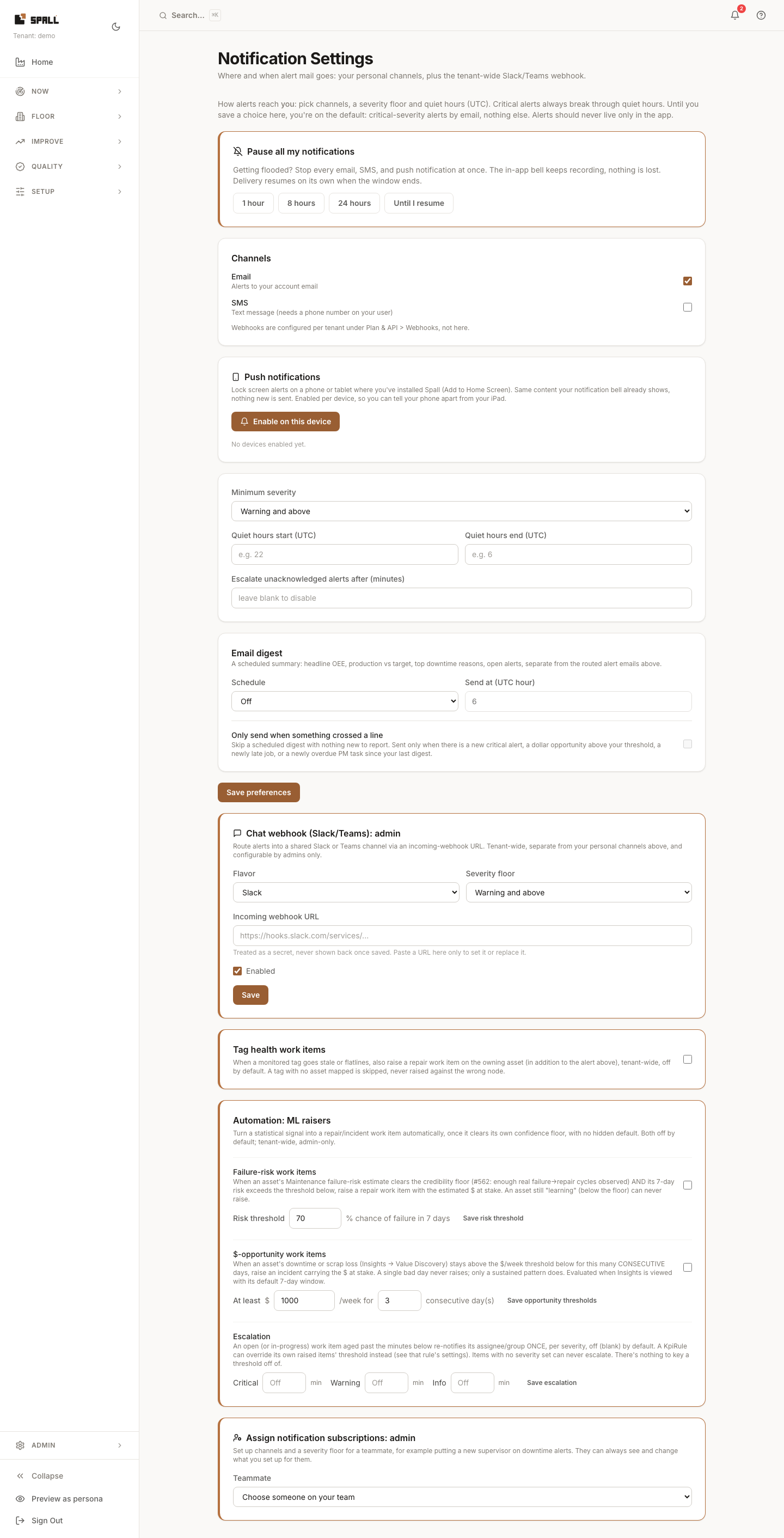
- Pick your channels, Email (your account email) and SMS (needs a phone number on your user), and a minimum severity floor. Until you save a choice, the default is critical-severity alerts by email only. Alerts should never live only in the app. Webhooks are configured per tenant, not per person, see How to manage API keys and webhooks.
- Enable push notifications on a phone or tablet where you’ve installed Spall (Add to Home Screen), for lock screen alerts. Unlike the other channels, push is per device, not a single toggle, see How to enable push notifications on your phone or tablet for the full walkthrough, including the iPhone/iPad installed-app requirement.
- Set quiet hours (UTC) if you don’t want to be paged overnight, critical alerts always break through regardless.
- Getting flooded? Pause all my notifications for 1/8/24 hours or until you resume, the in-app bell keeps recording everything, nothing is lost, and delivery resumes on its own when the window ends.
- Set an email digest schedule (off / daily / weekly), a separate scheduled summary (headline OEE,
production vs target, top downtime reasons, open alerts, verified savings), distinct from the routed alert
emails above. Every downtime reason and the scrap total in that email carries a dollar estimate and its
basis, and every line links straight to the exact screen it summarizes, so someone who never opens Spall
still sees where the money is going. New people usually don’t need to touch this at all, whoever invited
them already picked a starting Digest (see How to manage users and groups),
this is just where they can change or turn it off afterward. The richer, sites-and-losses weekly rollup
(“Weekly exec”) is a separate subscription, see
How to export reports and compare shifts. The digest itself sends
at a fixed hour UTC, but the day it covers is your plant’s own calendar day: the email states which day and
which timezone at the top. A tenant with sites in more than one timezone gets the day from the first site
set up on the account. A daily schedule with push notifications also enabled (step 3) adds one push each
morning naming yesterday’s biggest loss, see
How to enable push notifications on your phone or tablet.
That push, and a plain visit to the Daily Board (
/daily), both open to the last line you picked on the board. Pick a line once on any device while signed in and it opens there next time, on that device and on the push’s own link alike. Picking a different line, or the plant view, at any point changes what is remembered. - Turn on Only send when something crossed a line beside the schedule to skip a digest with nothing new to report. On a quiet day nothing goes out at all, the digest only sends when, since your last one, there is a new critical alert, a dollar opportunity above your threshold, a newly late job, or a newly overdue PM task. Set your own dollar opportunity threshold underneath, it defaults to 1000, and the first line of a sent digest always says which of those crossed the line. Off by default, every existing digest keeps arriving on schedule unless you turn this on.
- Admins can also set the tenant-wide Chat webhook (Slack/Teams). The URL must be a public https address, a Slack or Teams incoming webhook qualifies, a URL that points at localhost, an internal service, or any other non public address is rejected. Admins can also tune automated raisers: Tag health work items (a stale/flatlined tag raises a repair work item), $-opportunity work items (a sustained loss above a $/week threshold for N consecutive days raises an incident), Failure-risk work items (an asset’s failure-risk estimate above a threshold raises a repair, once that asset has enough history to trust), and Escalation thresholds (re-notify an assignee once an open item ages past N minutes, per severity).
- Admins can also set up subscriptions on a teammate’s behalf, in the Assign notification subscriptions card at the bottom of the page: pick someone on your team, choose their channels and minimum severity, and click Assign. They always see it, their own Notification Settings page shows an “Added by” banner naming you, and they keep full control: saving any change of their own on this page hands it back to purely personal settings. To undo an assignment, open the same card and click Remove assignment, this resets them to the same default a first save would give them. This card covers channels and severity only, not the digest, that’s set once at invite time (see How to manage users and groups) and changed afterward on each person’s own page, step 6 above.
Notes
- This is personal routing plus a few tenant-wide admin controls, not the alert itself, the underlying alert or work item still exists tenant-wide and appears on Alerts/Work Items regardless of your notification settings.
- Every automated raiser has its own noise floor. A single bad reading never raises anything, only a sustained, credible pattern does.
- Notification Settings and KPI & Alarm Rules are both reached from the Settings page now, not their own Setup nav rail entry, still the same deliberate what-then-who pairing.
- An admin assigning your subscriptions never locks you out, you can always see, and change, whatever was set up for you.
Related
- How to create KPI and alarm rules
- How to enable push notifications on your phone or tablet
- How to acknowledge open alerts
- How to manage work items: incidents, andon calls, and repairs
- How to manage API keys and webhooks
An admin can enable Remind people about inactive work items in the automatic work-item settings. It starts off. Open or in-progress items become eligible after 24 hours without a comment, assignment or status update by a person. Assignees and watchers receive at most one reminder attempt per day, subject to their email and pause preferences. A failed delivery waits until the next eligible day. The activity history records the attempt or that there were no active recipients. Turn the setting off to stop future reminders.