How to run a claimed station
Wiki: Floor concepts, Downtime
When to use this
You want a tablet mounted at a machine that counts good/scrap parts, shows progress against target, and lets an operator code downtime without leaving the floor. Do this by claiming a device as a station.
Steps
- On the tablet, while signed in, open
/kiosk(or scan the QR code from Kiosk → a device’s pairing screen). You land on the boards list first, click Set up this device there to reach the claim screen, “Set up this device as a station.” (A genuine floor device with no one signed in goes straight to the tokenless pairing screen instead, see How to build a kiosk wallboard.)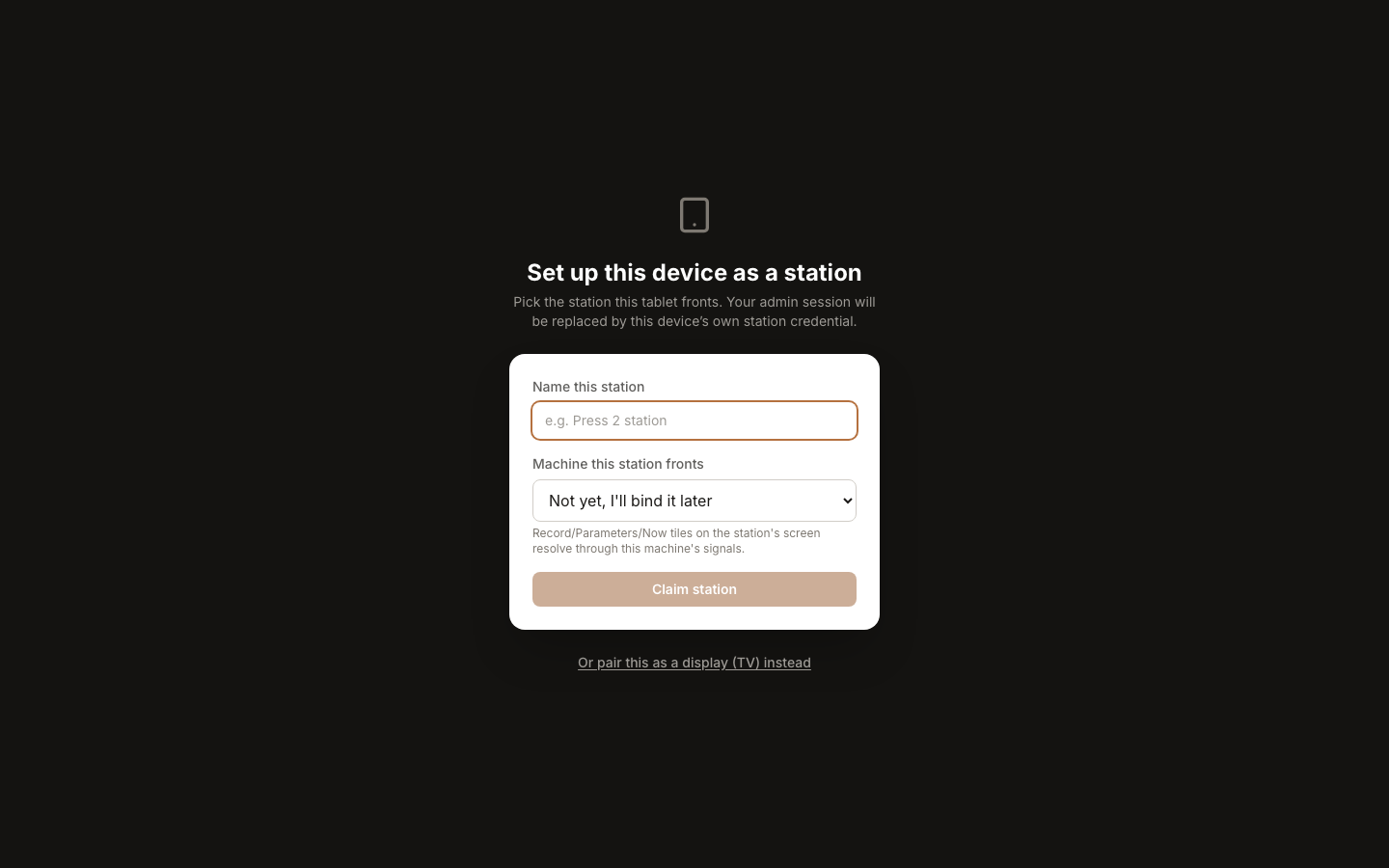
- Name the station and pick what it fronts from the plant-hierarchy picker: a single machine for a one-to-one station, or a whole cell (or higher) if one tablet is meant to front several machines at once, or choose “Not yet, I’ll bind it later” if you’re staging the tablet before the machine is ready. Every input tile on the station’s board (see below) resolves through whichever machine, or group of machines, you bind here.
- Tap Claim station. Your admin session on this device is replaced by the station’s own device credential, this is a device-scoped token, not a human login, so the station keeps working without anyone signed in. (If you want this device to be a plain wallboard TV instead of an interactive station, use “pair this as a display” on the same screen, see How to build a kiosk wallboard.)
- Once claimed, the station renders full-screen, chrome-free: whichever board of tiles is assigned to the device, the same board editor used for kiosk wallboards. On a station, tiles from the operator palette (Now, Record, Parameters, Downtime, Help, Job) render as live, tappable input tiles instead of read-only displays. Assign the ones you want an operator to see and act on from Kiosk → Boards.
- Now shows run state and count vs. target as a percentage, plus a good/bad/scrap breakdown for the window, the target only shows when the machine has a configured rate. No target is ever faked.
- Job is where counting happens: pick the job running, watch its progress, and tap + Good / + Scrap to log a unit against it, no batch/save step. If the machine has no scheduled job to pick from, or you just want to say what it’s actually running without any job paperwork, tap What’s running? instead, see How to tell Spall what a machine is running. If your plant has a defect-type catalog set up, tapping + Scrap offers big buttons for what kind of scrap it was, plus a Just scrap button when you’d rather not say. Picking a type is always optional and never adds an extra PIN prompt, the scrap still counts the moment you tap either one, and typed scrap flows straight into the defect Pareto. A plant with no defect-type catalog configured sees a single + Scrap tap with no extra step, exactly like counting good parts. If the job you’re counting against finishes or closes on its own (a scheduled job completing, or a floor entry closing automatically, see How to tell Spall what a machine is running), the tile switches to This run ended with the reason, and a Start the next run button takes you straight to picking what’s running now, no count is ever dropped or logged against a finished job.
- Downtime opens into that machine’s queue: whatever’s happening right now sits pinned at the top, then every span still waiting on a reason lists below it, newest first, with how long it lasted. Tap Tag reason to code one span, or tap Select to choose several at once and apply one reason to all of them, handy when a shift’s worth of short stops share the same cause, one PIN covers the whole batch. A queue with more than a page’s worth shows a Load more button instead of trying to fit everything on screen at once. The tile distinguishes which kind of quiet you’re looking at: “No downtime to tag right now” means nothing has happened on this machine in the window at all, while “All downtime coded” means plenty happened but every span already has a reason, two different states, never collapsed into one generic empty message. Coded spans roll up into the Downtime Pareto and Shift Handoff’s summary. A span shorter than your plant’s configured minor stop threshold shows up already labeled Minor stop (auto), no tap needed, it still counts in every number, it just never asked a human for a reason, and it never sits in the queue waiting on one either. A stop shorter than your plant’s configured ignore floor never shows up here at all, it is not counted as downtime in the first place.
- Help lets an operator raise a request (Maintenance, Material, Quality, or Other) and see the status of their own open requests, without leaving the station.
- Record is big-button manual entry, a Pass/Fail tap plus an optional note, for signals that aren’t fed automatically. Parameters shows read-only parameter values for the bound machine.
- Any attributable action (a count, a coded downtime reason) prompts for an operator PIN the first time, then stays signed in for a grace period so the same operator isn’t re-entering it on every tap. While signed in, a badge at the top of the screen shows who’s signed in and a countdown, tap End on that badge to sign out early instead of waiting out the countdown, useful for a shift handover or when stepping away from the tablet.
A station that fronts a cell
When a station is bound to a cell instead of a single machine, the board grows a live machine strip across the top: one chip per machine, colored by run state, with a small count badge for any downtime that still needs a reason. A stopped machine’s chip floats to the front of the strip so it’s the first thing an operator sees, and tapping it jumps straight into that machine’s downtime queue, no extra steps.
Record, Downtime, and Parameters each start with a machine picker, machines that are stopped float to the top, then whichever machine was used most recently. Pick one and the tile works exactly as it does for a single-machine station from then on. A Change machine button lets you switch. That pick is remembered for as long as the operator stays signed in, so recording several entries against the same machine only asks once, and it’s forgotten the moment that sign-in ends.
Help still raises a request for the whole cell, since that’s who the call is really for, but you can optionally tag which machine prompted it.
A station bound to a single machine never shows the strip or the picker, it works exactly as described above.
The map tile on a station
If the station’s board includes a Cell Map or Facility Map tile, its machine boxes become tappable there too, the same map you would see on a plain wallboard TV, but on a claimed station its machines are live controls instead of a picture. Tap a stopped machine’s box and it jumps straight into that machine’s downtime queue, exactly like tapping its chip in the live strip above. Tap a running machine’s box and it becomes the machine your next Record, Parameters, or Job entry acts on, no separate picker step. A Facility Map tile only makes its individual machine boxes tappable this way, not a whole area or cell, tap one of those and nothing happens, since there is nowhere for a station to go from there.
A machine shown on the map but outside what this station is bound to still renders, so the picture stays complete, but it is dimmed and does not respond to a tap, this station cannot act on a machine that is not its own. Every machine still shows up in the live strip regardless of whether it is drawn on the map, the map is a bonus view, never the only way to reach a machine.
Notes
- A small EN/ES toggle sits in the bottom-left corner of the board. Tap it to switch the station between English and Spanish, the choice is remembered on that device and survives a reload.
- Missing data renders as an em-dash instead of a made-up number.
- A downtime reason or a Record note describes what happened on the machine, not why the operator did something, that’s what these fields feed the plant’s patterns and AI answers with, and it’s credited by station and shift, not by the individual who tapped it.
- Mount
/kioskon the tablet and claim it as a station. - To re-bind a station to a different machine, change its assigned board, or un-claim a device, use its entry
on Kiosk → Devices (
/kiosk-screens?tab=devices), see How to build a kiosk wallboard.