How to follow the Getting Started checklist
Wiki: Setup concepts, The onboarding path
When to use this
You’re a new admin on an empty tenant and don’t know what to configure first.
Steps
- Sign in, a fresh tenant lands you on Getting Started (
/getting-started) automatically. You can also reach it any time from Setup at the bottom of the sidebar.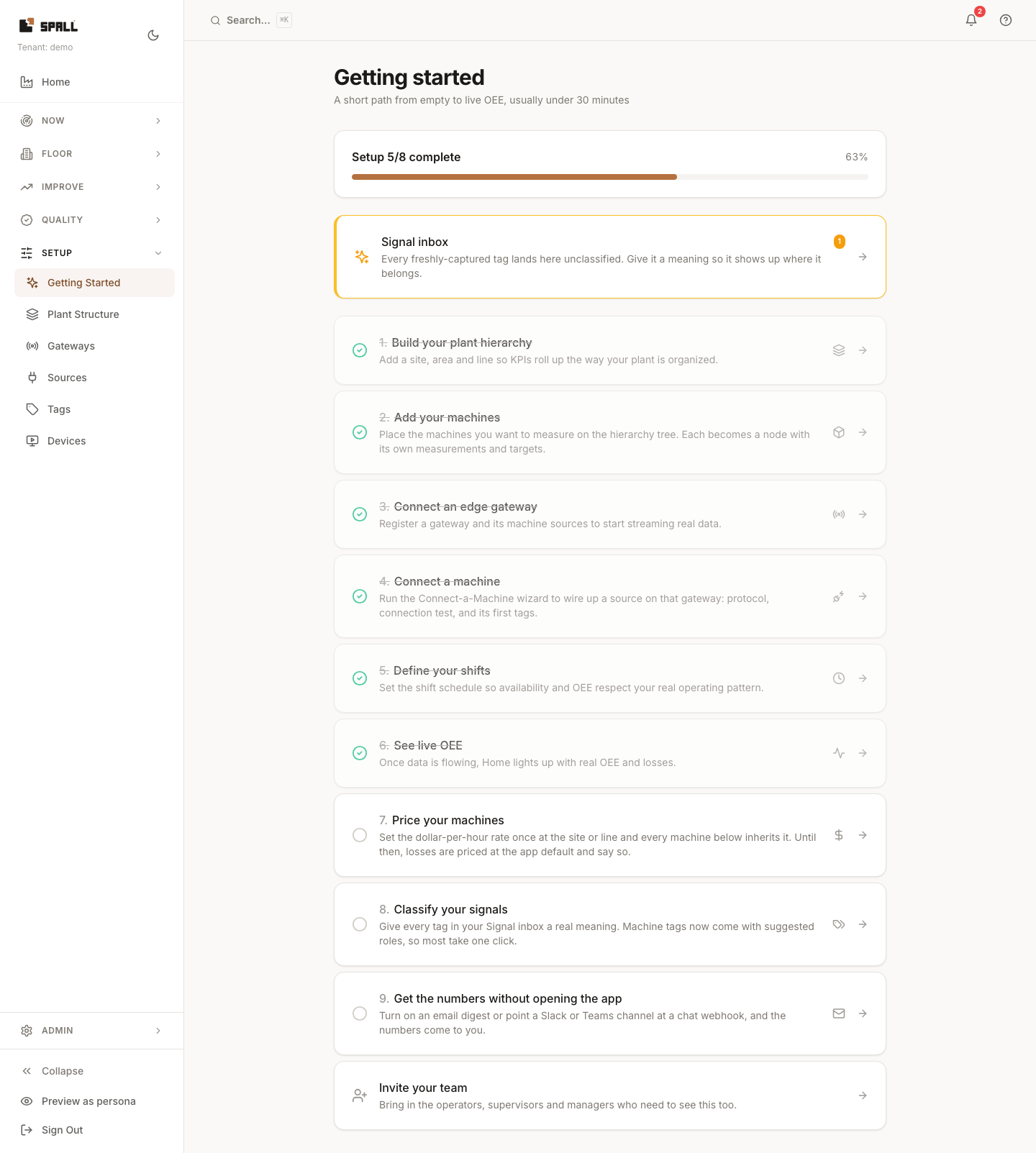
- Work down the ordered steps, each of which checks itself off automatically once true:
- Build your plant hierarchy → links to Plant Structure, add a site, area and line.
- Add your machines → links to the same Plant Structure page. Place machines on the tree you just built (each becomes a node with its own measurements and targets), there is no separate assets screen, this page does both.
- Connect an edge gateway → links to Gateways.
- Connect a machine → links to the Connect a Machine wizard, once a gateway exists, to wire up real telemetry against a machine you’ve already placed.
- Define your shifts → links to Workforce.
- See live OEE → links to Home, whose Plant status tile surfaces OEE at every level and opens Facility Map’s KPI lens for the spatial view, once data is actually flowing.
- Price your machines → links to Rates & Costing (
/rates-costing). Set the dollar-per-hour rate once at the site or line and every machine below inherits it. Until then, losses are priced at the app default, and every screen that does so says so and links back here. Checks off once every machine that has produced or stopped in the last 30 days is priced at a configured rate, not the app default. - Classify your signals → links to the Signal inbox (
/grooming). Checks off once every captured tag has a real meaning. Machine tags now come with suggested roles, so most rows are a single click. - Get the numbers without opening the app → links to
Notifications (
/notification-settings). Checks off once you set an email digest schedule, or a tenant admin points a Slack or Teams channel at a chat webhook.
- Right above the checklist, a Signal inbox card shows a live count of unclassified measurements, see How to use the Signal inbox. This is the card’s only entry point now. The Signal inbox doesn’t have its own nav item.
- Below the checklist, an Invite your team card links to Users
(
/users) so operators, supervisors and managers can see the plant too. It is a shortcut, not a step, there is nothing for it to check off. - If you’re exploring instead of onboarding a real plant, ask your Spall contact for a guided walkthrough of the demo environment, which has live data on every screen. Your own tenant’s checklist above is the path for onboarding real data, there’s no demo-data shortcut inside it.
Notes
- Progress (a percentage bar, “You’re all set” at 100%) is computed from real tenant state, it isn’t a static checklist you tick yourself. Each step only checks because the underlying condition (a site exists, a machine exists, etc.) is actually true. Reaching live OEE isn’t the finish line: the checklist keeps going until the signal inbox is clear and you have a way to see the numbers without opening the app.