How to manage jobs
Wiki: Improve concepts
When to use this
You want the plant-wide list of every job, including planned, running, completed, and cancelled jobs, instead of hunting through Production’s or Dispatch Board’s own narrower views.
Steps
- Click Jobs, then All jobs (
/work-orders). It’s a record you review here, not a floor action, sequencing and reassigning still happens on Floor’s Dispatch Board.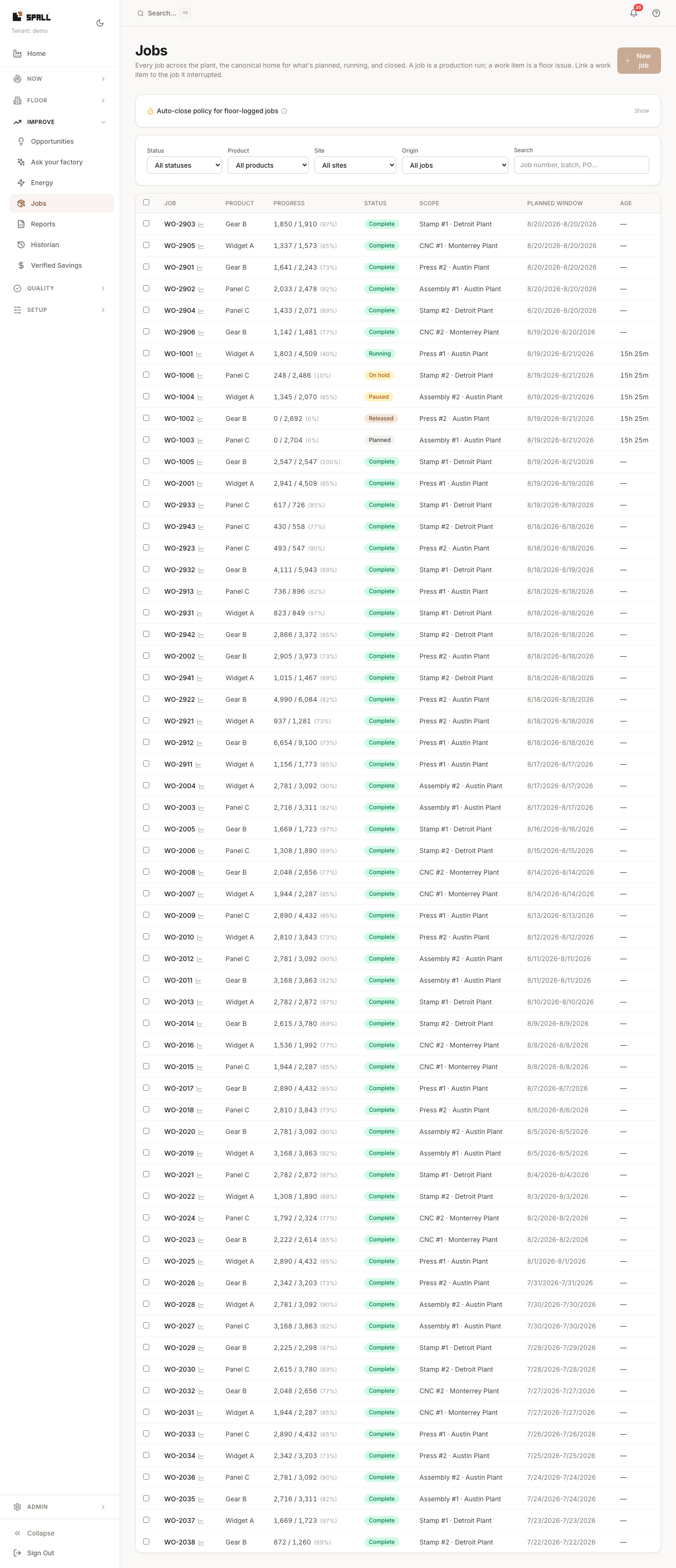
- Filter by Status (Planned, Released, Running, Paused, On hold, Complete, Cancelled), Product, Site, or Origin (Scheduled vs. logged from the floor), or search directly for a job number.
- Each row shows progress (units complete / target, with a %), current status, its scope (the machine and site it’s running on), planned window, and age. A job someone told Spall about from the machine itself, without ever scheduling it, carries a Logged from the floor badge and shows a dash instead of a made-up target or planned window, see How to tell Spall what a machine is running.
- Click New job to create one: the job number field starts filled in with a suggested next number (continuing your own numbering if you have one, otherwise a dated number), so you don’t have to invent a scheme, but you can still type over it with your own. Fill in the product it’s running, quantity ordered, the site, and its scheduled start and end. Every other field (status, priority, sequencing) starts at its default and gets set later, from the job’s detail page or Dispatch Board.
- Click a job to open its detail page: the full operation history and event log, plus a Work items raised during this job list, any incident, andon call, or repair someone linked to it. Click through to see or change the link on the work item’s own detail page.
- On a job’s detail page, open the Run review tab to see every individual cycle across the run, beyond just the average. A timeline plots each part’s cycle time against the target, with a shaded on-target band, colored excursions, and a distribution chart underneath. A stretch when the machine was stopped shows as a labeled break in the timeline instead of one giant slow cycle. Summary figures (median, typical range, cycles counted against plan) sit above the chart, and a small note states the precision cycle times are known to. Use the unit dropdown to switch how times are shown, seconds, minutes, or hours per part, or parts per minute, hour, or day, whichever reads naturally for that machine. This tab needs the machine to report a part counter. If one isn’t set up yet, or the job hasn’t started, you’ll see a note instead of an empty chart. Each row on the Jobs list also carries a small chart icon next to the job number that jumps straight to this tab for that job. The same cycle view exists per machine, no job needed, on a machine’s own Cycles tab, see How to check plant status and drill into a problem.
- Use the bulk bar (select multiple rows) for status changes across several jobs at once.
- To sequence or reassign WHICH work center runs which job next, use Dispatch Board instead. Jobs is the full record, including completed and cancelled history. Dispatch is the planning surface. Production and Dispatch Board both keep their own job views and link into this page for the full record.
Notes
- This is the surface a reviewer would ask “where are jobs held?” about, it didn’t exist as its own destination before. Job data used to be scattered across Production and Dispatch Board only.
- A job logged straight from the floor (no schedule) closes itself under a plant-wide auto-close
policy: an idle-gap timeout, an optional shift-boundary close, and a hard max-duration backstop.
Open Auto-close policy for floor-logged jobs near the top of this page to see and change it,
or click Job auto-close on Settings (
/settings) to jump straight here with it already expanded. A machine or line can override the policy on its own KPIs and targets tab. - A job is a production run to complete, not a floor issue to resolve, that’s a work item (see Work Items). Its detail page lists every work item raised during it, and a work item can link to the job it interrupted from its own detail page. Linking never changes either record’s lifecycle, closing the job doesn’t close the work item, and resolving the work item doesn’t touch the job.