How to manage API keys and webhooks
Wiki: Account concepts, API keys
When to use this
You need programmatic access to Spall data (a script, an integration) or want another system to receive events as they happen.
Steps, API keys
- Click Plan & API under Admin at the bottom of the sidebar (
/account), then the API Keys tab.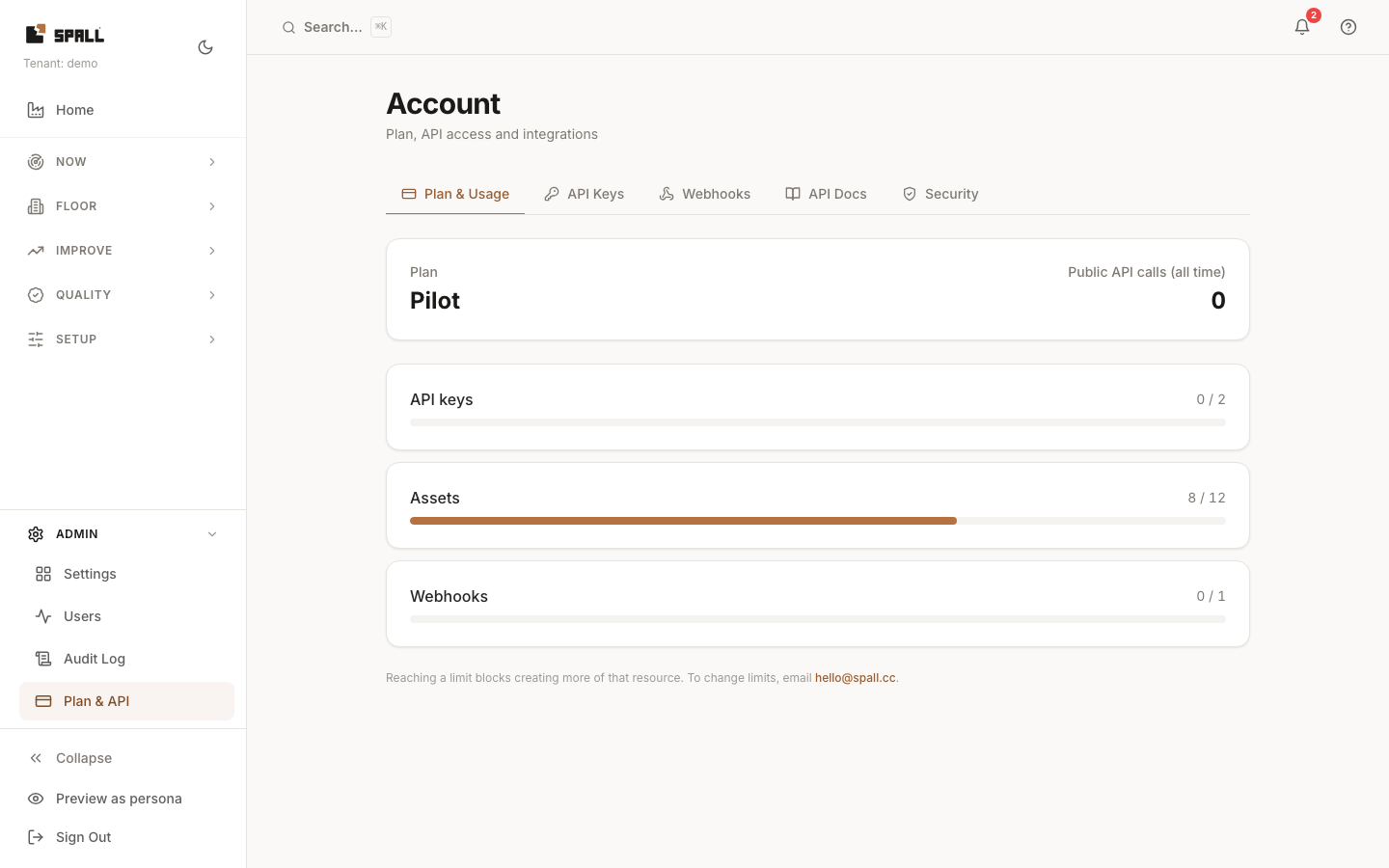
- If you’re an admin, create a new key (
GET /api/v1/api-keys/lists existing ones). A non-admin sees the same list, but the create and revoke controls stay visible and disabled with a tooltip explaining why. The server enforces the same restriction on its own, independent of what the buttons show. - Copy the revealed secret immediately, it’s your one chance to see it in full.
- Revoke a key you no longer need (
DELETE /api/v1/api-keys/{id}). A revoked key stays on record, it just moves out of the visible list, click Show revoked below the active keys to see it again.
Choosing scopes
Every key can read your data, that’s always on. Beyond that, pick only the scopes the key actually needs, each one grants access to a specific action, nothing more:
- Legacy write covers the three original authoring endpoints: KPI and alarm rules, derived measurements, and event links.
- ERP integration scopes each cover one resource, for example jobs, reason codes, shifts, products, operators, or webhooks. If your integration only creates jobs, grant just the jobs scope, don’t also grant products or shifts.
- Ask lets a key ask your factory a question in plain language and get a sourced answer back, the same way the in-app Ask page does. Only grant it to a key you trust to spend your AI question budget for the day. Every other AI and ML read, opportunities, downtime, failure risk, the verified savings ledger, learned insights, and golden runs, needs no extra scope.
A key missing a scope it needs gets a clear rejection naming exactly which scope is required, so it’s easy to go back and issue a new key with the right one. Scopes are set at creation and can’t be edited afterward, if a key needs a different set, revoke it and create a new one instead.
In the key list, a key’s scopes show as a chip next to its name. A key with several scopes collapses to a short “read +N” chip, hover or focus it to see the full list.
Steps, webhooks
- Switch to the Webhooks tab.
- Register a new webhook URL to receive outbound event deliveries (e.g. new alerts). The URL must be a public https address, a URL that points at localhost, an internal service, or any other non public address is rejected. Your plan caps how many webhooks you may register, the tab shows your current usage against that limit.
- Click Send test to fire a test delivery (
POST /api/v1/webhooks/{id}/test) and confirm the endpoint is reachable before relying on it. - Click Deliveries to review the delivery log for a webhook (
GET /api/v1/webhooks/{id}/deliveries). - Click Delete on a webhook you no longer need (
DELETE /api/v1/webhooks/{id}).
Related
- How to connect Excel via OData, uses the same API keys
- How to connect your AI assistant, uses the same API keys
- How to configure notification preferences